How to take meeting notes without typing a word
A step-by-step setup for recording, transcribing and summarizing your calls, with nothing leaving your computer except what you choose.

You can take great meeting notes without typing a word by letting software do three jobs: record the call, transcribe it, and summarize it into decisions and action items. The trick is to set it up once, so it happens on its own for every meeting. Then you get to do the one thing a notetaker can’t: actually pay attention.
Here’s the setup we use, step by step, with a private twist: nothing leaves your computer except what you choose to send.
Why stop typing notes at all?
Typing notes during a meeting splits your attention. You’re half listening, half transcribing, and fully missing the moment someone says something important while you’re still finishing the last sentence. Notes typed live also tend to be either too much (a messy transcript) or too little (“pricing??”).
A good automatic setup gives you:
- A complete record of what was said, searchable later.
- A short summary you can read in 30 seconds.
- Action items with owners, so nothing falls through the cracks.
- Your full attention during the meeting itself.
Step 1: Pick a recorder that doesn’t need a bot
Many meeting tools join your call as a visible participant, like “Notetaker is recording”. It works, but it changes the room. Clients get cagey. Candidates get nervous. Someone always asks “who’s that?”
A better approach is a recorder that runs on your own computer and captures two things:
- Your microphone, for your side of the conversation.
- Your computer’s sound, for everyone else on the call.
That’s how Fetch works. It labels the two as “Me” and “Them”, which makes the transcript much easier to read. Because it records locally, it also works for phone calls on speaker, in-person meetings, and calls on apps it doesn’t know about.
Whatever tool you use, tell people you’re recording. It’s the law in many places and good manners everywhere. Fetch can remind you each time you start recording.
Step 2: Make recording automatic
The best notes are the ones you don’t have to remember to take. Set your recorder to start on its own when a call starts.
In Fetch, that’s on by default: when a Zoom, Google Meet, Microsoft Teams or Slack huddle call begins, it starts recording. If you’d rather approve each one, switch to a pop-up that asks “Want me to fetch the notes?” instead. See Automatic call detection.
It also helps to have the recorder start with Windows and wait in the tray, near the clock. Then it’s always ready, and you never think about it.
Step 3: Transcribe on your own computer
Transcription is the step where most of your privacy goes, or stays. Many services upload your audio to their servers to turn it into text. Modern speech models are now good enough, and small enough, to run on a normal laptop instead.
Fetch does two passes:
- A live pass during the call, so words appear as people talk.
- A clean-up pass after the call, using a slower, more careful model that fixes names and mumbles.
Both happen on your PC. With an NVIDIA graphics card it can use the most accurate models. Without one, it picks lighter models that stay quick. Setup checks your computer and chooses for you. Curious about the trade-offs? Read Local vs cloud transcription: what actually stays private.
Step 4: Let AI write the summary
A transcript is complete but long. Nobody wants to reread 40 minutes of “yeah, totally, so, um”. This is where AI earns its keep.
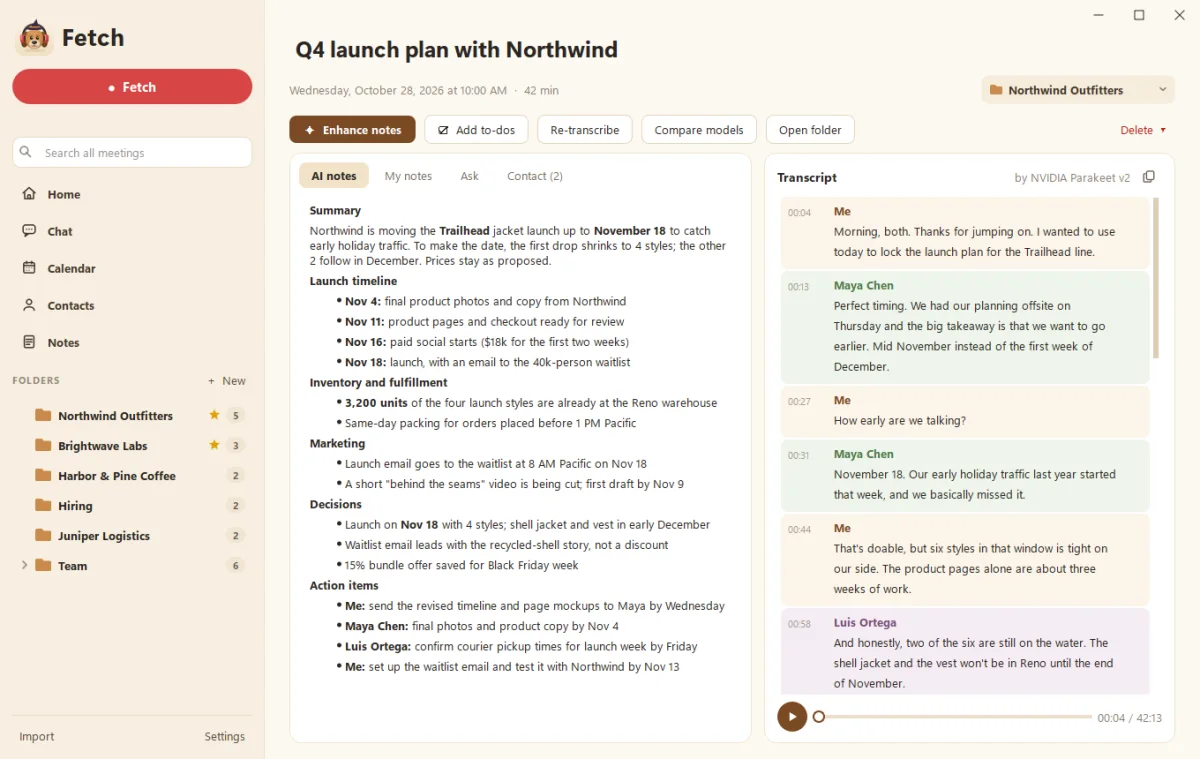
After each call, Fetch sends the text of the transcript (never the audio) to your own Claude or ChatGPT account and gets back:
- A summary of what the meeting was about and where it landed.
- The decisions that were made.
- The action items, with who’s doing what.
If you already pay for Claude or ChatGPT, this uses that plan instead of adding another subscription. Set it up once: Connect Claude or ChatGPT to Fetch.
Step 5: Jot three words, not three paragraphs
“Without typing a word” was a slight exaggeration. Sometimes a few words help. When something matters to you, jot a fragment in the notes box: “Sam owns pricing”, “follow up re: SSO”, “!!! budget”. When Fetch writes the summary, it works your notes in, so the summary reflects what you thought was important, not just what was said most.
That’s the sweet spot: you stay present, and the summary still has your fingerprints on it. See Enhance your notes.
Step 6: Connect your calendar
A calendar connection turns “Untitled call, 10:02 AM” into “Q4 roadmap check-in with Priya and Jordan”. It gives every call the right name, the right people, and the agenda from the invite, which makes the AI summary better too.
Fetch connects to Google Calendar, Outlook, iCloud or any calendar with a private .ics link, and only reads it. See Connect your calendar. As a bonus, it can show you who’s coming a couple of minutes before each meeting, which we wrote about in Five minutes before every meeting: the briefing habit.
Step 7: File it where you’ll find it
Notes are only useful if you can find them again. Make a folder for each client, project or team. Then let calls file themselves: Fetch uses each folder’s name, plus any extra trigger words you add, like a product name or a person, to suggest or move calls into the right place. Each folder also gets a running Notes page with the big picture, decisions and open questions across all its calls. See Folders and Folder Notes.
Step 8: Ask, don’t search
Six weeks later, you won’t remember which call it was. You’ll remember the question: “What did we decide about the beta?” Ask it in plain words. Fetch searches your meetings on your computer and answers with a link to the exact moment it was said. See Ask your meetings.
Common mistakes to avoid
A few things trip people up in the first week:
- Recording only your microphone. You get a perfect transcript of yourself and a vague hum of everyone else. Make sure your recorder captures computer sound too.
- Using the laptop speakers in a quiet room. Fine for one-on-ones, but echo can confuse transcription. A headset gives the cleanest result for both sides.
- Never reading the summary. Automatic notes only help if you glance at them. Take 30 seconds after each call to check the action items while it’s fresh.
- Letting everything pile into one list. Without folders, a month of calls becomes a haystack. Set up folders on day one.
- Forgetting to tell people. We said it already. We’ll say it again. Tell people you’re recording.
What about privacy?
Here’s where everything goes with this setup:
| What | Where it goes |
|---|---|
| Audio | Your computer only |
| Transcript | Your computer only |
| AI summary | The text goes to your own Claude or ChatGPT account, when it writes notes |
| Backups | Google Drive, only if you turn it on |
Compare that with the typical cloud notetaker in our Fetch vs cloud meeting notetakers comparison.
The five-minute setup, recapped
- Install a recorder that captures your mic and computer sound.
- Turn on automatic recording.
- Let it transcribe on your PC.
- Connect Claude or ChatGPT for summaries.
- Connect your calendar.
- Make folders for your clients or teams.
Then go to your next meeting and just… listen. It’s a strange feeling at first. You’ll get used to it. Your future self, searching for “that thing Dana said in March”, will thank you. Ready? Record your first meeting.
Questions people ask
Is it legal to record my meetings?
It depends on where you and the other people are. Some places require everyone's consent. The simple rule is to always tell people you're recording, and stop if anyone objects.
Do I need to take any notes at all?
No. A recording, a transcript and an AI summary cover most meetings. A few rough notes during the call just help the summary focus on what you cared about.
Does this work for in-person meetings?
Yes. Start recording and the app listens through your microphone. Put the laptop near the middle of the table.
Still scratching your head?
Send us a note and a real person will get back to you.