Connect your calendar
How to connect Google Calendar, Outlook or any calendar to Fetch with a private calendar link, so calls get named, filed and briefed.
To connect Google Calendar to Fetch, copy your calendar’s private address in iCal format from Google Calendar’s settings, then paste it into Fetch under Settings > Calendar > Add a private calendar link. Outlook and other calendars work the same way. Fetch can then name your calls, know who’s on them, and brief you before each one.
How do I connect Google Calendar?
- Open Google Calendar in your browser and click the gear > Settings.
- On the left, under Settings for my calendars, click your calendar.
- Scroll to Secret address in iCal format and copy it. It ends in
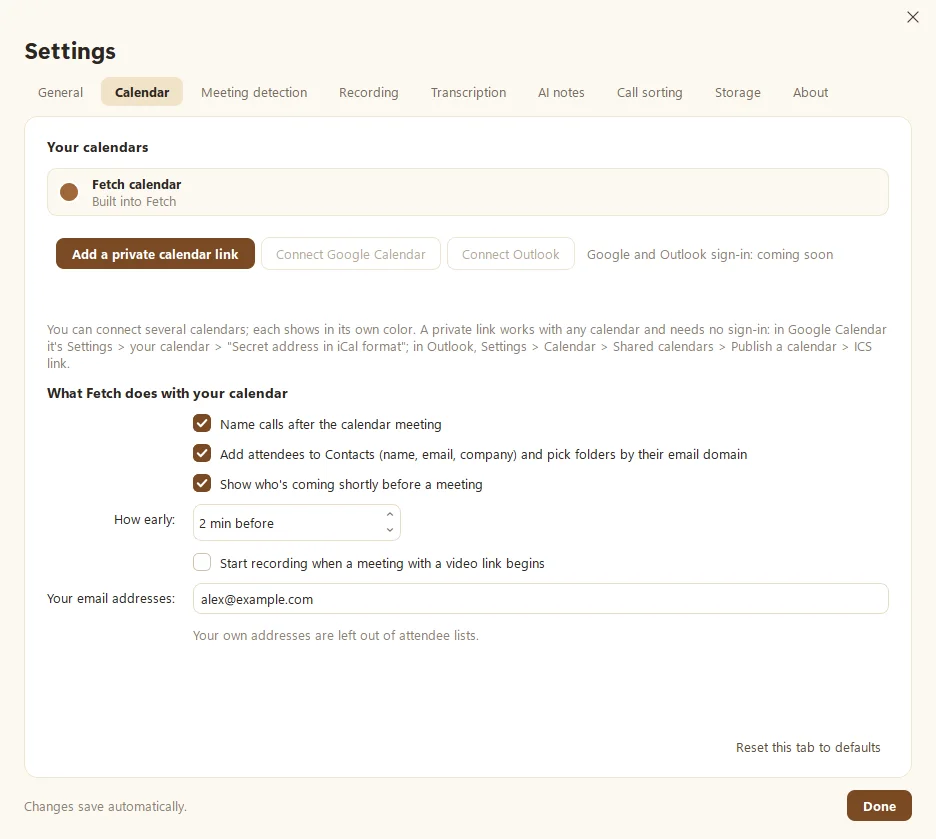
.ics. - In Fetch, open Settings > Calendar and click Add a private calendar link.
- Paste the link, give the calendar a name (like “Work”), and click OK.
Your events then show up on Fetch’s Calendar page.
How do I connect Outlook?
In Outlook on the web, go to Settings > Calendar > Shared calendars > Publish a calendar, choose your calendar, and copy the ICS link. Then paste it into Fetch the same way. Any calendar app that offers an .ics link works, including iCloud.
Keep the link private. Anyone who has it can see your events, so treat it like a key under the doormat.
What does Fetch do with my calendar?
Under What Fetch does with your calendar, you can switch each of these on or off:
- Name calls after the calendar meeting, so “Untitled call” becomes “Q4 roadmap check-in”.
- Add attendees to Contacts and pick folders by their email domain.
- Show who’s coming shortly before a meeting, two minutes ahead by default. See Briefings before your calls.
- Start recording when a meeting with a video link begins. This is off unless you turn it on. Fetch also notices calls on its own.
Add Your email addresses too, so you don’t show up as a guest at your own meetings.
Can I add events in Fetch itself?
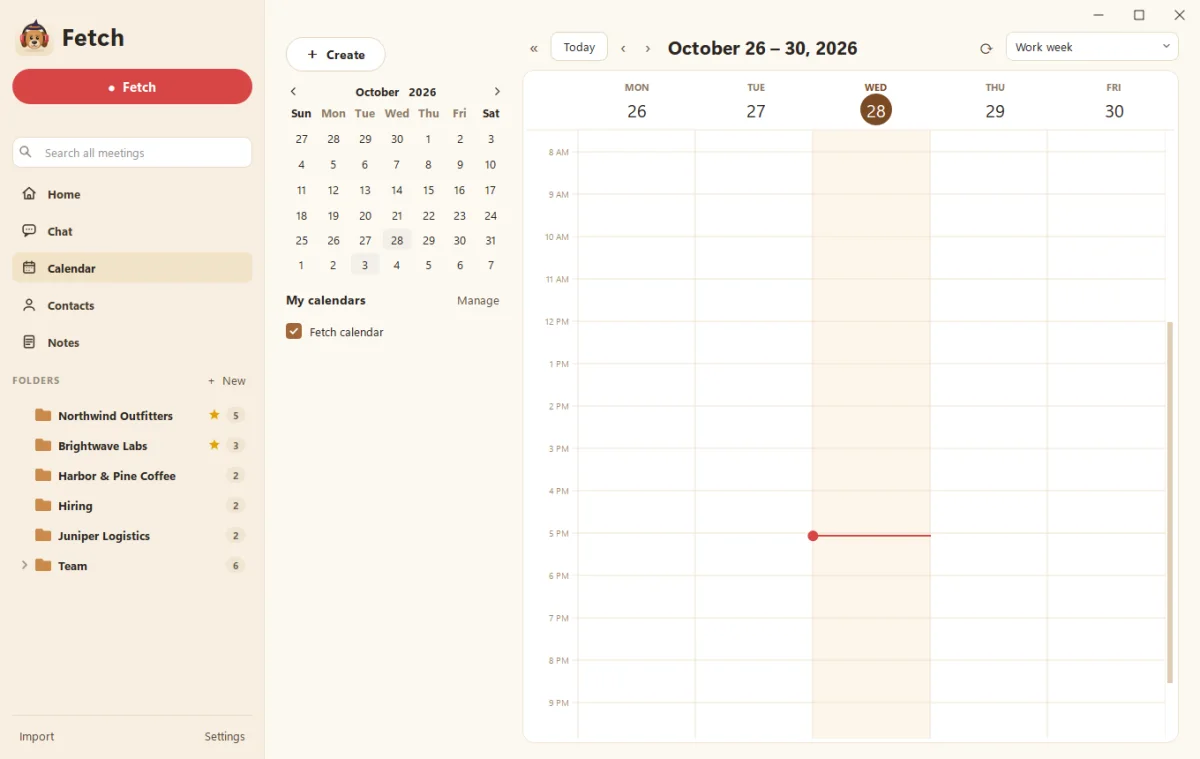
Yes. Fetch has a built-in calendar for events you add right on the Calendar page. Use it for in-person meetings that aren’t on another calendar. The page has day, week, work week and month views.
Why isn’t my calendar updating?
Check the calendar in Settings > Calendar. If something is wrong, the error shows in red under its name. The most common fix is copying the link again, because resetting the secret address in Google makes the old one stop working.
Questions people ask
Can Fetch change my calendar?
No. Fetch only reads your calendar. It never adds, moves or deletes your events.
Is there a "Sign in with Google" button?
Direct Google and Outlook sign-in is coming soon. For now, the private calendar link does the same job and needs no sign-in at all.
Can I connect more than one calendar?
Yes, as many as you like. Each one shows in its own color.
Still scratching your head?
Send us a note and a real person will get back to you.