Enhance your notes
How Fetch turns your rough meeting notes and the transcript into a clean summary with decisions and action items, and how to add to-dos.
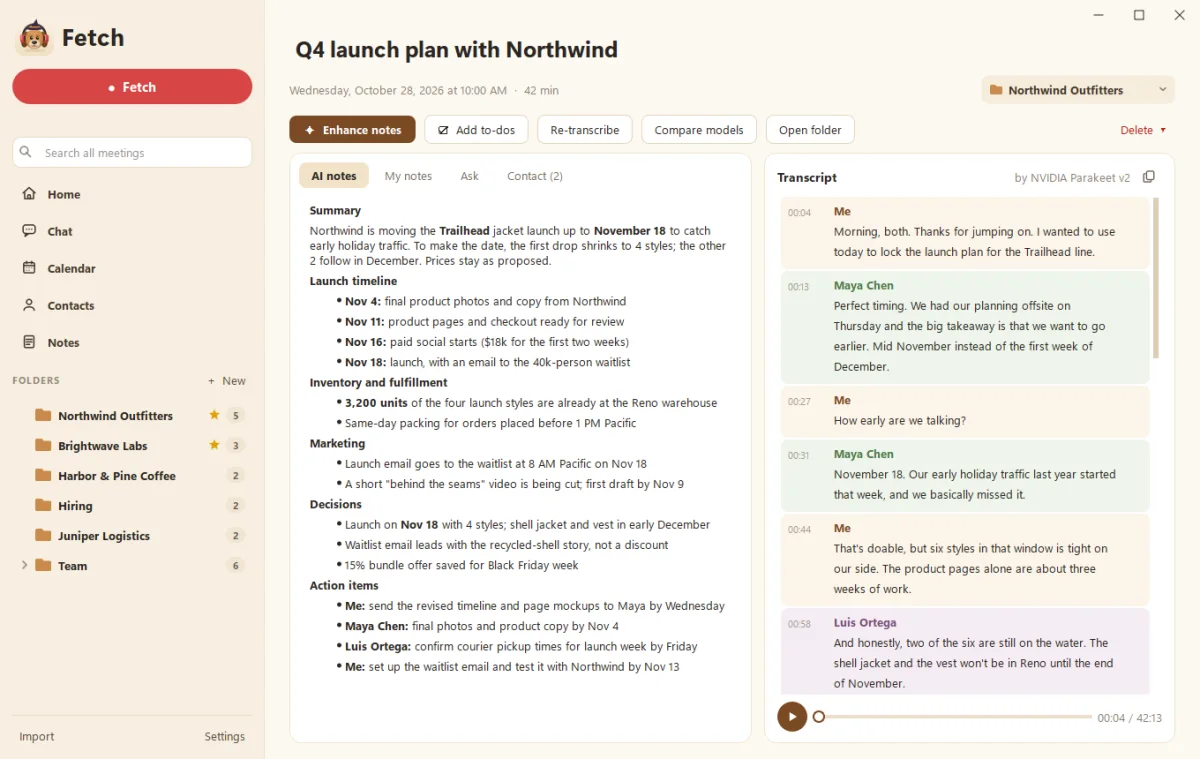
Enhance notes turns your rough notes and the call’s transcript into tidy AI notes: a short summary, the decisions made, and the action items with owners. Fetch does it automatically after each call when Claude or ChatGPT is connected, or you can click Enhance notes on any meeting.
How do I use it?
- During the call, type rough notes in My notes. The placeholder says “Type rough notes here during the meeting…”, and it means rough. Half-sentences, typos and “??” are all fine.
- When the call ends, Fetch cleans up the transcript and then writes the AI notes tab on its own.
- Want a fresh take? Click Enhance notes at the top of the meeting at any time.
What goes into the AI notes?
- Summary: what the meeting was about and where it landed.
- Decisions: what was agreed.
- Action items: who’s doing what, by when if it was said.
- Your own notes, worked in. If you wrote “Sam owns pricing”, it’ll say so.
If the call matched a calendar event, the invite’s agenda helps too (see Connect your calendar).
How do I turn action items into to-dos?
Click Add to-dos on the meeting, tick the action items you own, and they join your to-do list on Home. Turn on Remind me about to-dos on their due date in Settings > General for a nudge. Checking one off makes the dog dig a hole and bury it. Yes, really.
What gets sent to the AI?
Text only: the transcript, your notes, and the invite’s agenda. Never audio. It goes to your own Claude or ChatGPT account, not to Soggy Dog. See Connect Claude or ChatGPT to Fetch.
Where are the notes saved?
In the meeting’s folder, as notes.md, alongside the transcript and audio. See Where are my recordings saved?.
Questions people ask
Do I have to take notes for Enhance to work?
No. With no notes, Fetch writes the summary from the transcript alone. Your notes just tell it what you thought mattered.
Can I edit the AI notes?
Yes. They're yours, saved as plain Markdown in the call's folder. Edit away.
Why didn't it enhance automatically?
Check that Claude or ChatGPT is connected and that "Enhance notes automatically after each call" is on in Settings > AI notes.
Still scratching your head?
Send us a note and a real person will get back to you.