How to record and transcribe in-person meetings on a laptop
Coffee chats, interviews and workshops. How to get a clean transcript with just your laptop.

To record and transcribe an in-person meeting on a laptop, ask everyone first, put the laptop in the middle of the table with its microphone facing people, and use an app that records and transcribes, like Fetch. Press record when you start, and you’ll have a transcript and notes when you finish. For bigger rooms, add a small USB microphone.
Before the meeting
- Ask for consent. “Mind if I record so I can listen instead of scribbling?” Recording laws differ by place, and some require everyone’s agreement.
- Charge the laptop, or sit near an outlet. Recording and live transcription use more power than email.
- Turn off notification sounds. They’re loud on a recording.
- Pick the room. Soft furniture beats glass walls. A corner of a cafe beats the spot next to the espresso machine.
Where to put the laptop
Most laptop microphones sit near the keyboard or the top of the screen. For the best sound:
- Put the laptop in the middle of the table, not in front of you.
- Open it wide, so the mic isn’t blocked by the screen.
- Keep it away from cups and plates. Clinks and stirring come through loudly.
- Don’t type on it while recording. Keyboard taps land right next to the mic.
For more than four people, or a long table, a small USB conference microphone in the middle is well worth it. Choose it as the input in your recording app.
Recording with Fetch
- Open Fetch and click the red ● Fetch button. Fetch records any conversation, not just video calls.
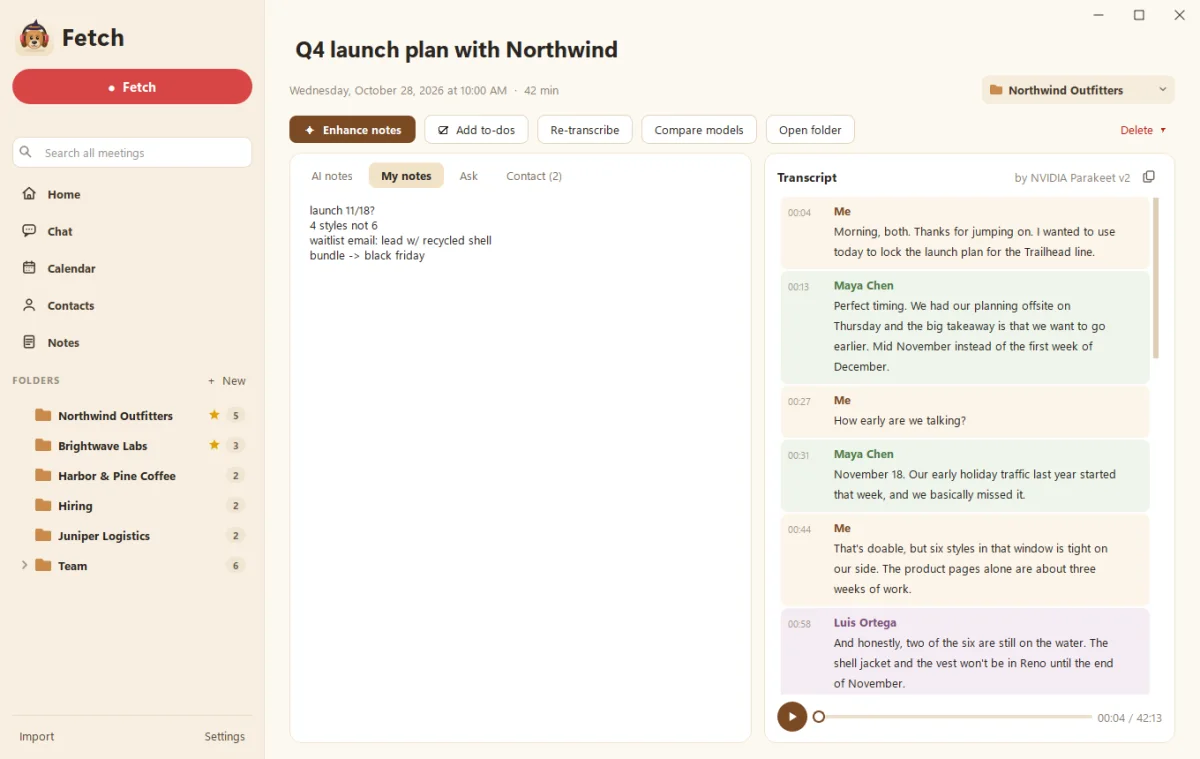
- Watch the transcript appear as people talk. It’s written on your laptop, with no internet needed.
- Jot rough notes if you like. Half-sentences are fine.
- Click ■ Drop it when you’re done.
After the meeting, Fetch runs a careful clean-up pass on the transcript and, if Claude or ChatGPT is connected, writes AI notes with a summary, decisions and action items. See Record your first meeting.
Telling speakers apart
On a video call, apps can separate you (your mic) from everyone else (your computer’s sound). In person, everyone speaks into the same microphone, so speaker labels are harder. A few things help:
- Introduce people at the start: “Priya, Sam and I are here.” It’s easier to follow later.
- Use names when handing over: “Sam, what do you think?”
- Teach Fetch a voice once. Tell it who a speaker is and it fixes their lines and recognizes them next time.
Recorded on your phone instead?
That works too. Save the audio file, then in Fetch click Import, choose Recording, and pick the file. Fetch transcribes it on your PC. See Import a recording or transcript.
After the meeting
The recording is only useful if something happens next. Within an hour:
- Skim the AI notes and fix anything off.
- Send decisions and action items to everyone who was there.
- Add your own to-dos to your list.
Prefer to write it up yourself? Use our free meeting notes template.
The short version
- Ask first, every time.
- Laptop in the middle, lid open, no typing.
- Add a USB mic for big rooms.
- Fetch records any conversation and transcribes it on your laptop, with notes after.
Questions people ask
Is a laptop microphone good enough?
For two to four people around a small table in a quiet room, usually yes. For bigger rooms or noisy cafes, a small USB conference microphone in the middle of the table makes a big difference.
Do I need permission to record?
Ask everyone, every time. Recording laws differ by place and some require everyone's consent. Asking also builds trust.
Can I record on my phone instead?
Yes, then import the audio file into a transcription app later. Fetch can import recordings and transcribe them on your PC.
Still scratching your head?
Send us a note and a real person will get back to you.