Folders and Folder Notes
How to sort Fetch meetings into folders by client or project, file calls automatically with trigger words, and use each folder's Notes page.
Folders keep Fetch tidy: one per client, project or team. Calls get filed automatically when someone mentions a folder’s trigger words, and every folder has a Notes page with a running summary, decisions, open questions, to-dos and people across all its calls.
How do I make a folder?
Click + New next to Folders in the sidebar, or right-click the sidebar and choose New folder…. Folders can hold subfolders, up to three levels. To file a call, drag it onto a folder.
How does automatic filing work?
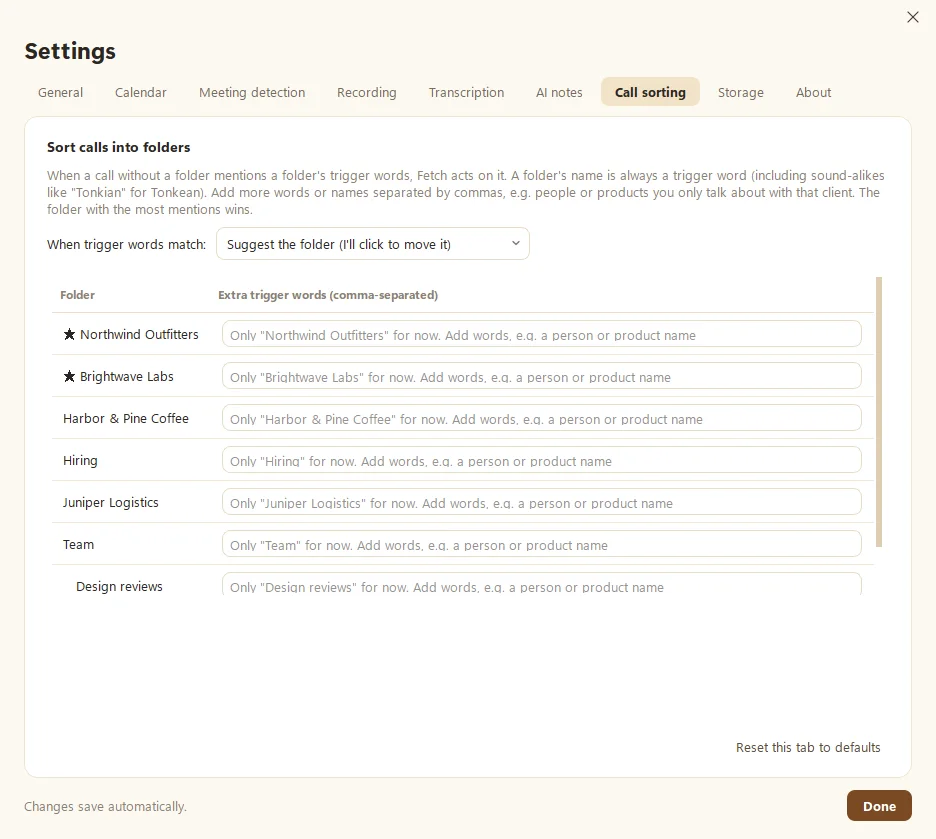
Every folder’s name is a trigger word, including sound-alikes. Add more in Settings > Call sorting, such as people, products or code names you only discuss with that client. When a call without a folder mentions them, the folder with the most mentions wins.
Choose what happens under When trigger words match:
- Suggest the folder (the default). A small prompt on the call lets you click ✓ to move it.
- Move the call into the folder automatically.
With a calendar connected, Fetch can also pick folders by attendees’ email domains (see Connect your calendar).
What’s on a folder’s Notes page?
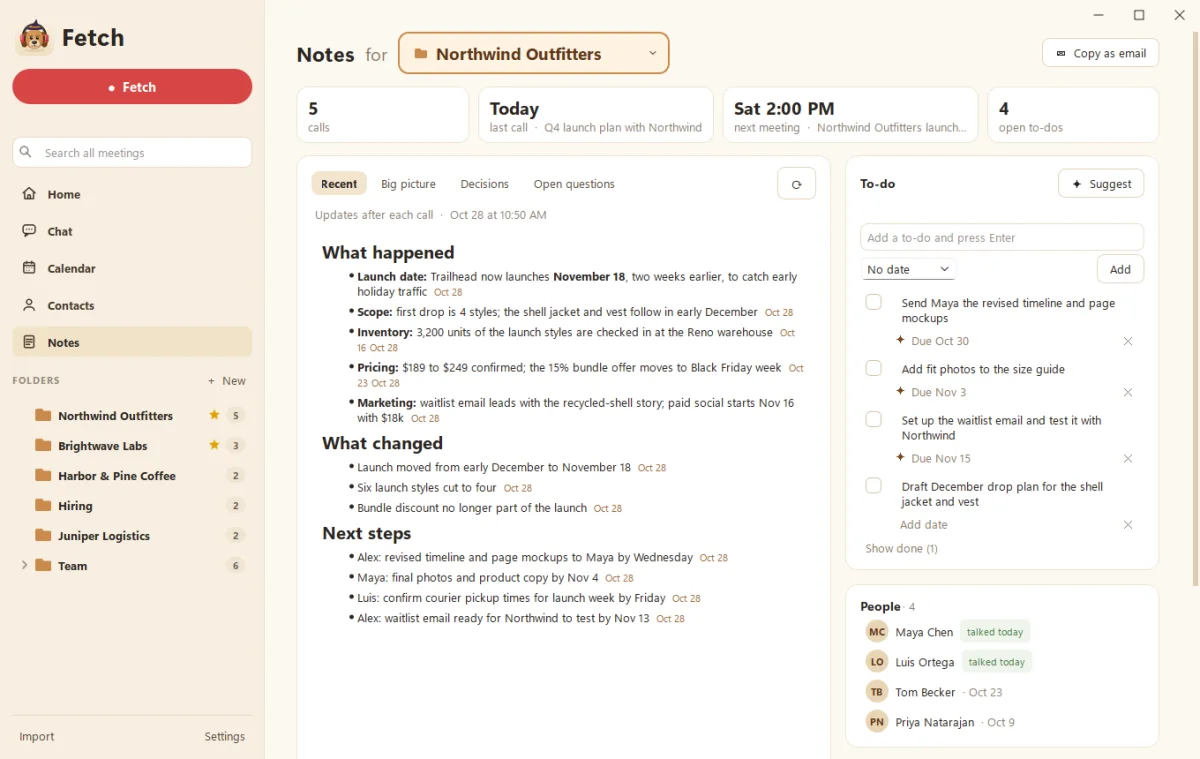
Open a folder to see its calls by date, plus its Notes page:
- Quick numbers: number of calls, last call, next meeting, open to-dos.
- A summary with tabs for Recent, Big picture, Decisions and Open questions. Every point links to the call it came from.
- To-dos, people and your own notes about the client or team.
- Ask about the folder right there, or copy the summary as an email for a quick update to your team.
Notes update on their own after each call with AI notes. It’s like having an assistant who actually read all the meeting notes. Imagine that.
Does it need AI?
Folders, filing and trigger words work without AI. The Notes summaries and Ask need Claude or ChatGPT (see Connect Claude or ChatGPT to Fetch).
Questions people ask
Can folders have subfolders?
Yes, up to three levels deep.
Will moving a call to a folder move its files?
Yes. The call's folder in Documents\Meeting Notes moves with it, so your files stay organized the same way.
Still scratching your head?
Send us a note and a real person will get back to you.