Record your first meeting
How to record a call or in-person meeting with Fetch, take notes while it listens, and get a clean transcript and AI summary after.
To record a meeting with Fetch, click the big red ● Fetch button at the top of the sidebar, or let Fetch start on its own when a Zoom, Google Meet, Teams or Slack call begins. It records both sides: your microphone as “Me” and your computer’s sound as “Them”. The transcript appears live as people talk.
How do I start recording?
Pick whichever is easiest:
- Click ● Fetch at the top of Fetch’s sidebar.
- Right-click the tray icon and choose Fetch (start recording).
- Do nothing. When a call starts, Fetch records automatically, or asks first if you’ve turned that off. See Automatic call detection.
While it records, the button changes to ■ Drop it. Click it to stop. If you wander off to another window, the Recording in progress bar takes you back.
What can I do while it records?
- Watch the live transcript. Words show up as they’re said, with your lines shaded differently from everyone else’s.
- Jot rough notes in the notes area. Fragments are fine (“pricing up 20%?? ask Sam”). After the call, Fetch works them into a clean summary.
- Add people. Fetch suggests who’s on the call from the calendar invite and the names it hears. Click Add or the X.
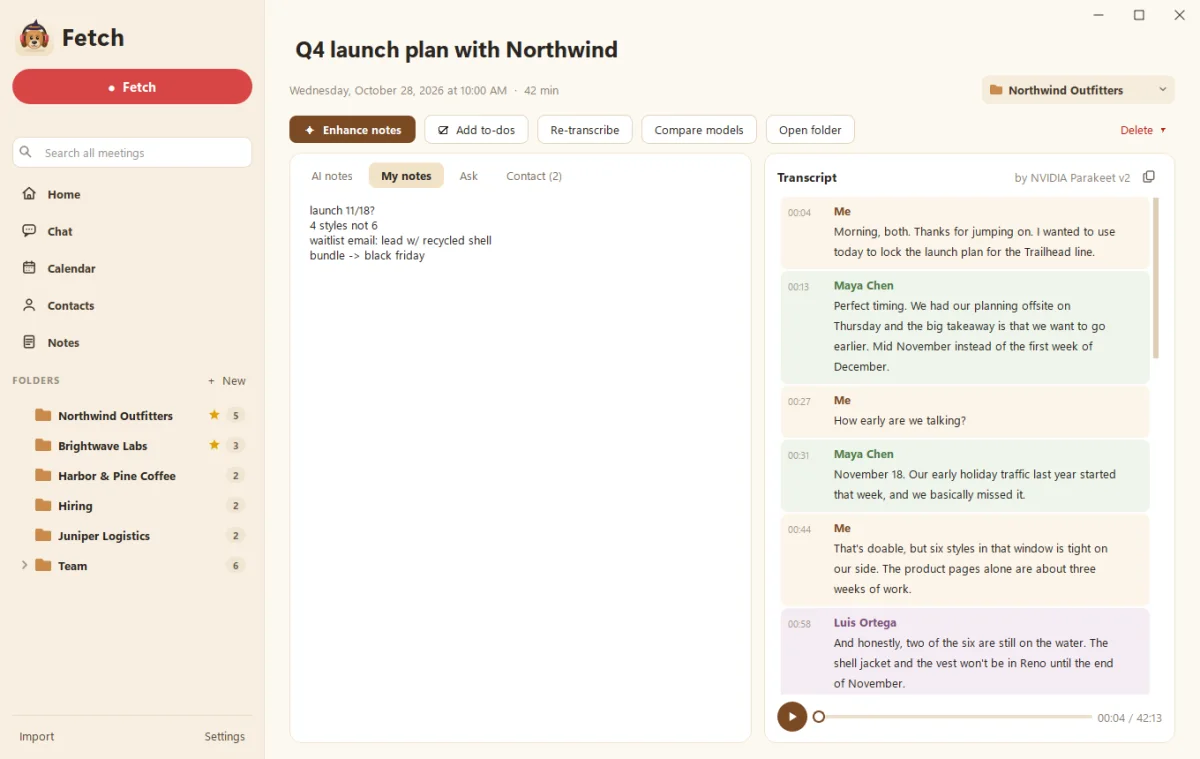
What happens when the call ends?
- Fetch saves the audio as MP3s and runs a careful clean-up pass on the transcript.
- If Claude or ChatGPT is connected, it writes AI notes: a summary, decisions and action items.
- The call is filed in a folder, or Fetch suggests one.
If nobody really spoke (say, you joined an empty room), Fetch deletes the call on its own, unless you typed notes. You can turn that off in Settings > Meeting detection.
How does Fetch know the call is over?
You can always click ■ Drop it to stop. Otherwise, after a long silence (5 minutes by default) Fetch asks “has the meeting ended?” and stops on its own if nobody answers. It also listens for goodbyes like “talk soon” and offers to stop. All of this lives in Settings > Meeting detection.
Where did it go?
Every call gets its own folder in Documents\Meeting Notes. See Where are my recordings saved?. Then make it shine with Enhance your notes.
Questions people ask
Does Fetch join my call as a bot?
No. It listens on your computer, using your microphone for you and your computer's sound for everyone else. Nobody sees an extra guest.
Should I tell people I'm recording?
Yes. Recording laws vary by place, and it's polite anyway. Fetch can remind you each time you start recording. Turn that on in Settings > Recording.
Can I record an in-person meeting?
Yes. Click the red record button and Fetch listens through your microphone.
Still scratching your head?
Send us a note and a real person will get back to you.