Review your Inbox
How to add the charges, refunds and deposits Kibble finds in your email, handle duplicates, and teach Kibble from the Skipped tab.
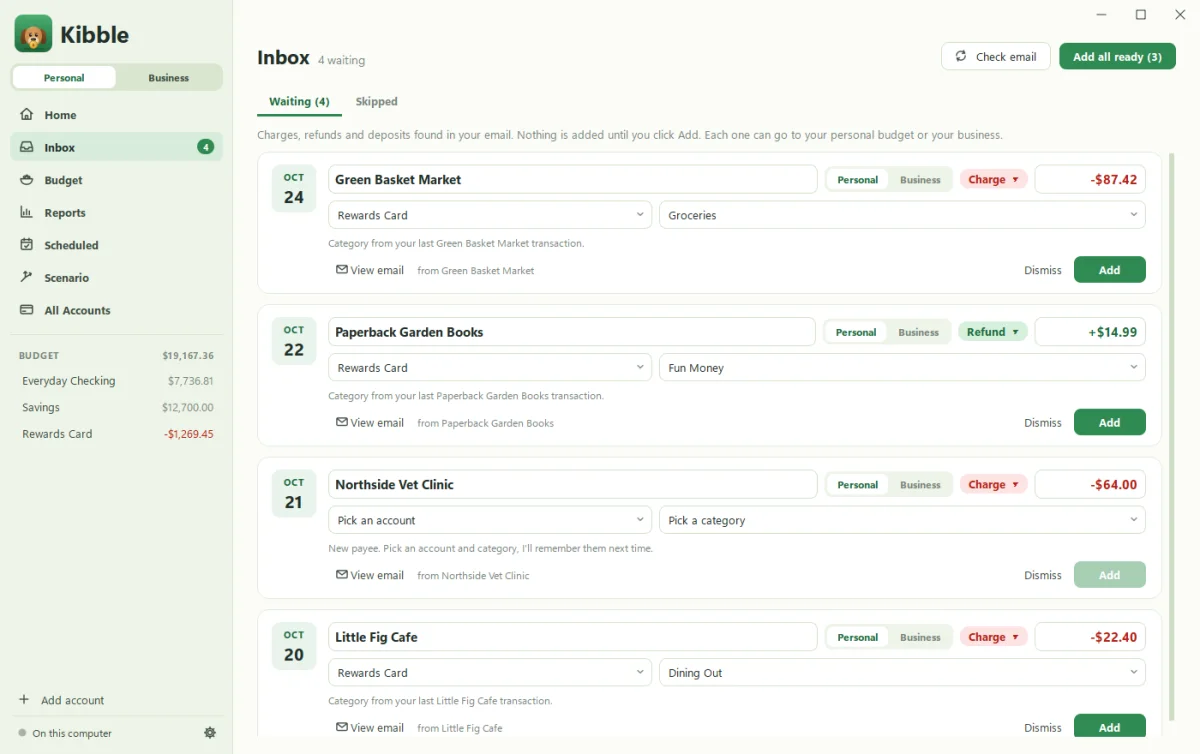
Kibble’s Inbox holds the charges, refunds and deposits it found in your email, each waiting for you. Check the payee, amount, account and category, then click Add to put it in your budget. Nothing goes in without your click. Emails Kibble read and left out are on the Skipped tab, where you can pull one back in and teach Kibble to include emails like it.
How do I add items?
Open Inbox in the sidebar. The Waiting tab shows each item with what Kibble suggests:
- Account: from the card’s last four digits or the payee’s usual account.
- Category: the payee’s last category first, then an AI guess.
- A duplicate warning if a matching transaction already exists.
Fix anything that’s off and click Add. For a new payee, Kibble asks which account and category to use and remembers both for next time. Second visit to the coffee shop? It already knows.
Click Check email to look for new items right now.
What’s on the Skipped tab?
Emails Kibble read and decided weren’t transactions, with the reason. If it got one wrong:
- Click Add to Inbox. Kibble reads it again for the amount, or you type it in.
- Optionally, teach it to include emails like this: from the same sender with the same start of the subject, or everything from the sender.
Learned rules show in Settings > Email, where you can edit or remove them. Adding a rule also looks again at skipped emails that match. One correction, many fixes.
Personal or business?
With Business mode set to Both, each item has a Personal | Business switch. Business items go to your business Checking or Card with a Schedule C line, or to the invoice a client payment pays. See Switch on Business mode.
What happens to the email afterward?
That’s up to you, in Settings > Email under After adding a transaction: add a Kibble label, move it to a Kibble folder, and/or mark it read. See Connect your Gmail.
Why is nothing showing up?
Check that the address is switched on in Settings > Email, that its start date is right, and that it’s reading the right folders. If AI is part of your setup, make sure you’re signed in (see Use Kibble AI).
Questions people ask
Why is an item marked as a possible duplicate?
There's already a transaction with the same amount within a few days (3 by default), in the same account when Kibble knows it. You're warned, but you can still add it.
Is the Inbox synced anywhere?
No. The Inbox lives only on this computer.
Still scratching your head?
Send us a note and a real person will get back to you.