Month close and your monthly summary email
How Kibble wraps up each month. Catch last month's last charges, then email yourself a summary of your money, with CC for a partner or accountant.
The first time you open Kibble after a month ends, Month close opens with two quick steps. First, catch any last charges: what’s still waiting in the Inbox and anything without a category. Then send yourself the monthly summary email, with your partner or accountant on CC if you like. Nothing is sent until you click Send summary.
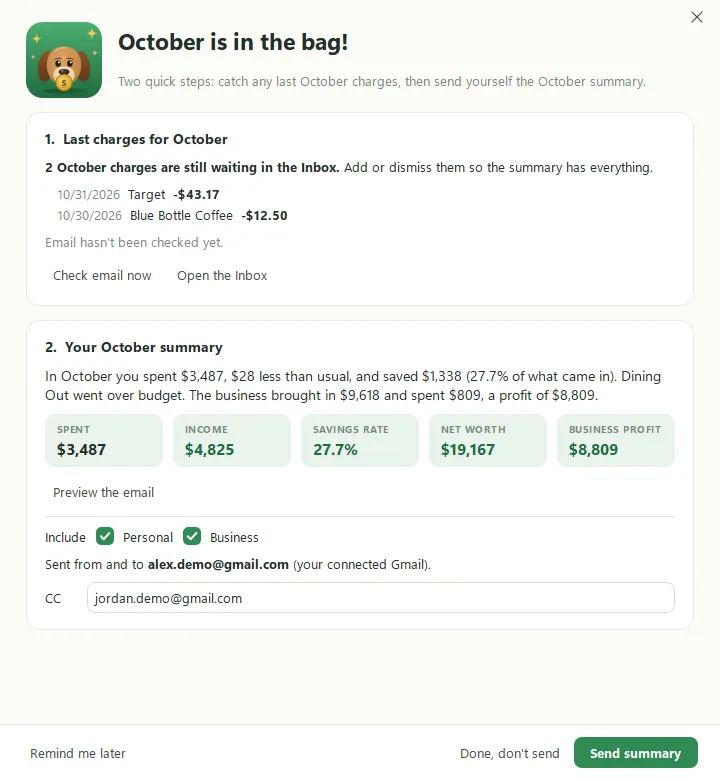
Step 1: catch the last charges
Month close lists last month’s charges still waiting in the Inbox and counts transactions with no category. Add or dismiss them so the summary has everything:
- Check email now looks for any charges that just arrived.
- Open the Inbox takes you there. The window stays open beside Kibble, and its list updates as you work.
- Open Accounts shows up when something needs a category.
Step 2: send the summary
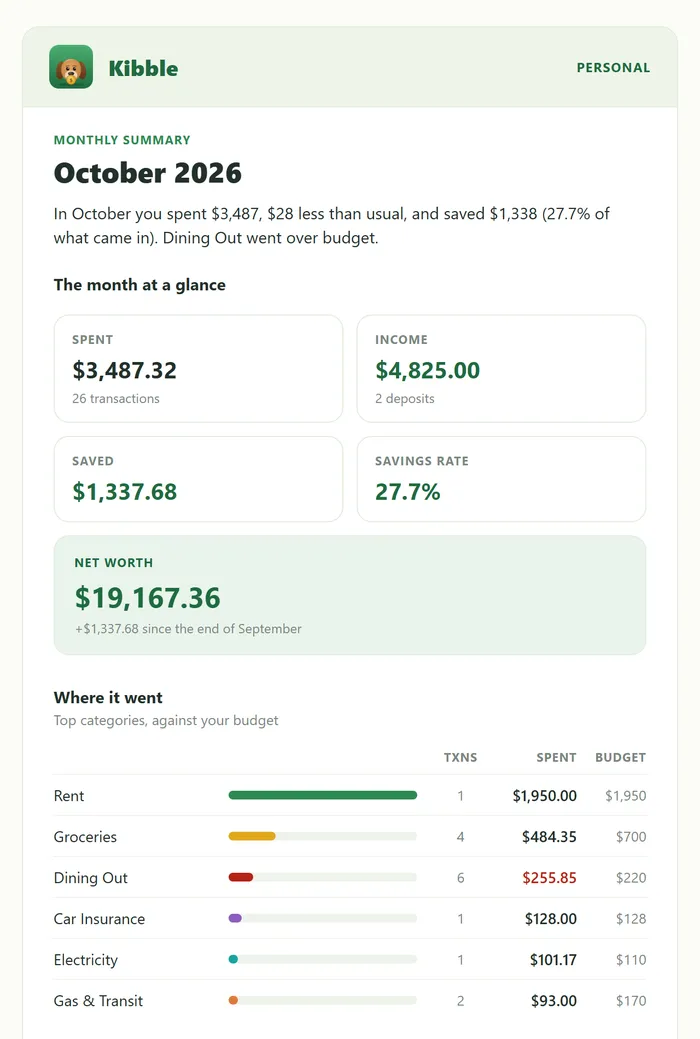
The window sums up the month in a sentence, with your spending, income, savings rate and net worth, plus your business profit if you use Business mode. Click Preview the email to see exactly what will be sent.
If Kibble is for Both, tick Personal, Business or both to choose what the email includes. Add anyone else to CC, separated by commas. Then click Send summary.
Not today? Remind me later closes the window, and Kibble asks again next time it opens. Done, don’t send wraps up the month without the email.
What’s in the email?
The summary looks like Kibble, with the green dog for Personal and the dog in a tie for Business.
- Personal: a one-sentence recap, what you spent, earned and saved, your savings rate and net worth, your top categories against your budget, the month before, and the year so far.
- Business: revenue, expenses and profit, unpaid invoices, the clients who paid, your top expense lines, the month before, and the year so far.
How do I change the settings?
Open Settings > Email and scroll to Month close:
- Turn Month close on or off.
- Choose what the summary includes (when Kibble is for Both).
- Set who to CC.
- Open Month close now or Preview the summary any time.
The summary is sent from your connected Gmail, so you need one connected to send it. See Connect your Gmail. For a closer look at any number, open Reports.
Questions people ask
When does Month close open?
The first time Kibble is open after a month ends. If you click Remind me later, it asks again the next time Kibble opens. Once you send the summary or click Done, don't send, it waits for the next month.
Who is the summary sent to?
It's sent from your connected Gmail to itself, plus anyone you add on CC. Kibble never sends it on its own. You click Send summary.
Can I turn Month close off?
Yes. Untick it in Settings > Email under Month close. You can still open it from there any time with Open Month close now.
Still scratching your head?
Send us a note and a real person will get back to you.