Track time with projects and tags
How to track your hours in Kibble with the timer, add time by hand or with AI, edit it in place, and see it by project and by tag.
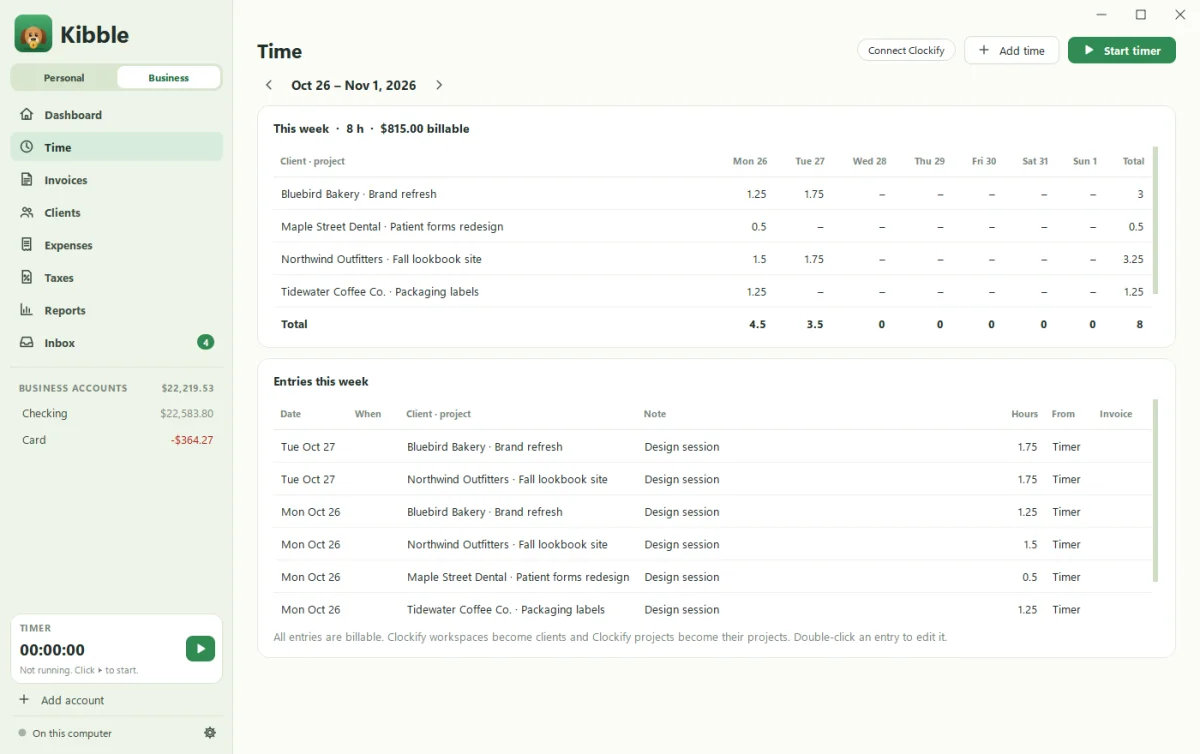
Kibble Business tracks your hours on the Time screen. Type what you’re working on, pick the project, and press START. Your entries are listed by week and day, and you can change any of them right in the list. The Projects and Tags screens, under Time in the sidebar, show where your hours went and what’s not invoiced yet.
How do I start a timer?
- Open Time on the Business side. It’s at the bottom of the sidebar.
- Type what you’re working on in the bar at the top.
- Pick the project. Each project has its own color, so it’s easy to spot in the list.
- Add tags with the tag button if you like, then press START.
The timer keeps running in the sidebar while you work on other screens. Press STOP when you’re done, and the time is saved to that project.
How do I add time by hand?
Click the pencil next to the timer to switch the bar to a start and end time. Type the times (like 9:30 and 11), pick the date and project, and add it. Click the clock to go back to the timer.
On any entry in the list, ▶ starts the timer again on the same work, and ⋯ duplicates or deletes it.
How do I change a time entry?
Click the part you want to change, right on the Time screen: what you did, the project, the tags, the start or end time, the date, or the length. Type a length as 1:30 or 1.5. It saves when you press Enter or click away. There’s no pop-up to open.
How does Add time with AI work?
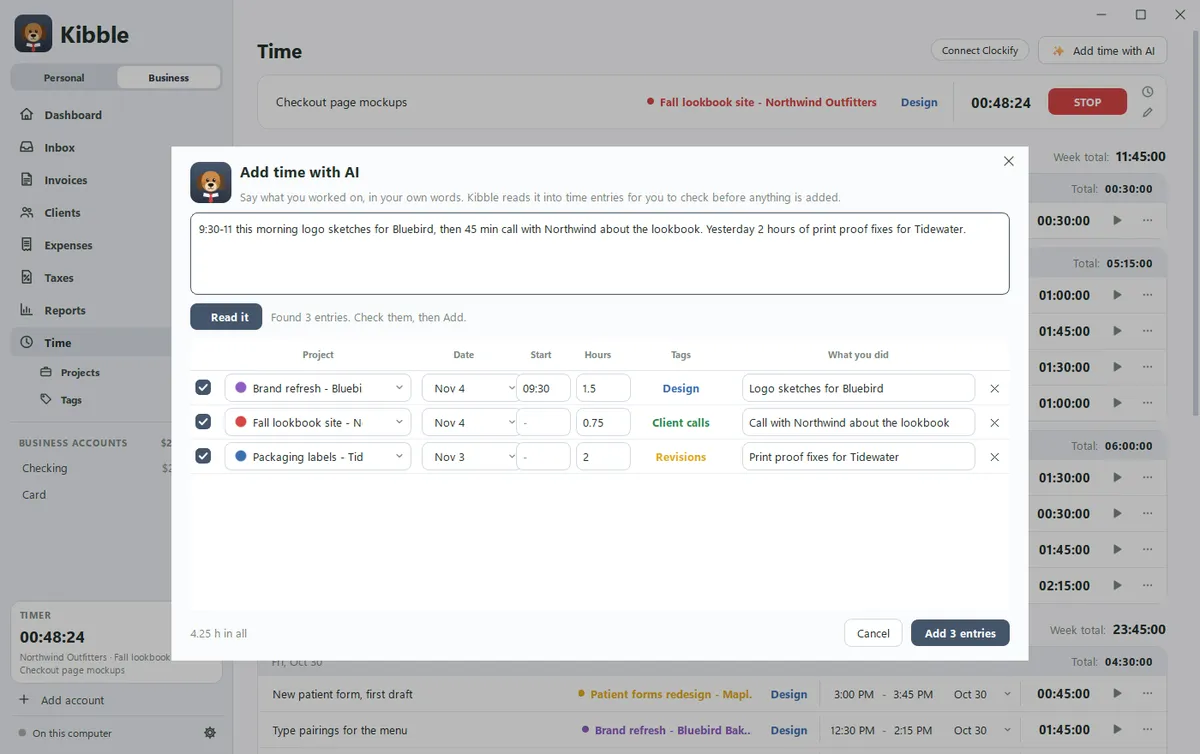
Click Add time with AI and say what you worked on, in your own words. For example: “9:30-11 logo sketches for Bluebird, then 45 min call with Northwind. Yesterday 2 hours of print proofs.” Click Read it, and Kibble lists the entries it found, with the project, date, times, tags and a note for each.
Check them, fix anything that’s off, untick any you don’t want, then click Add. Nothing is added before that. This uses your own Claude or ChatGPT plan, so turn AI on first in Settings > AI (see Use Kibble AI).
What’s on the Projects screen?
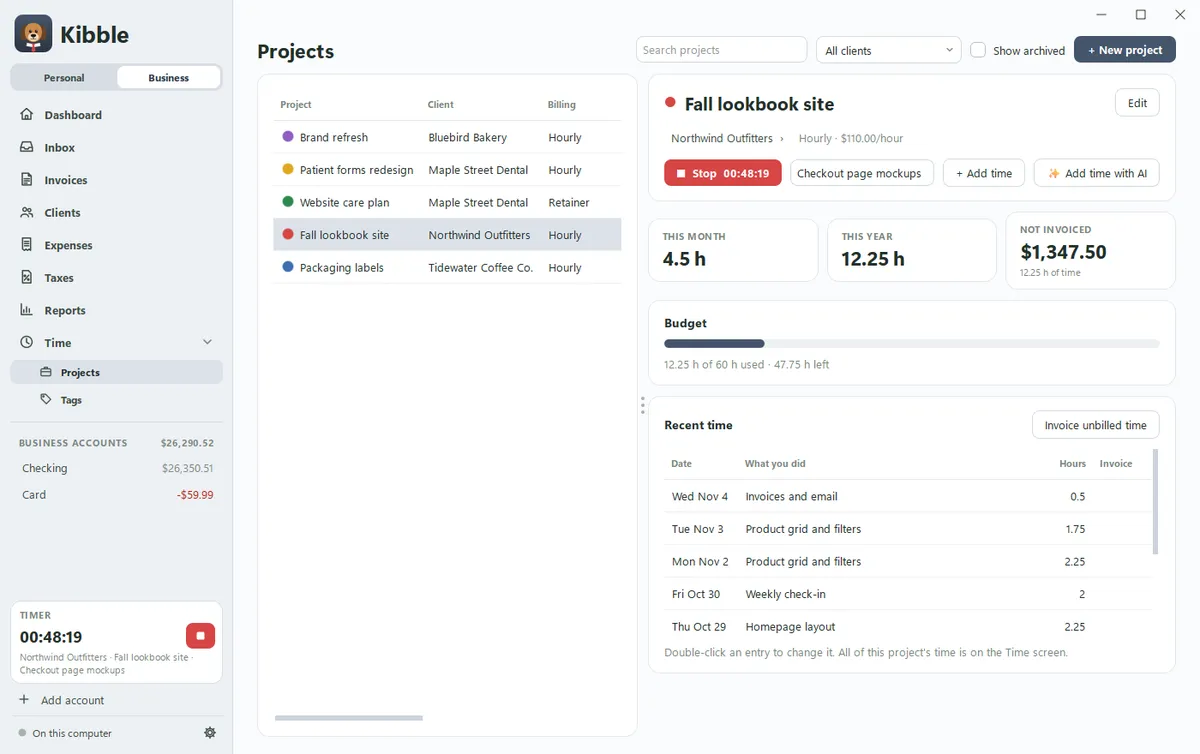
Every project with its client, billing, hours this month, budget left and what’s not invoiced. Pick one to:
- Start a timer on it, add time, or add time with AI.
- See its recent time, and how much of its planned hours are used.
- Invoice unbilled time, which starts an invoice with that project’s hours (see Send your first invoice).
- Open its client.
Click + New project to add one. You can add a new client on the spot, and set the billing, rate and planned hours.
How do tags work?
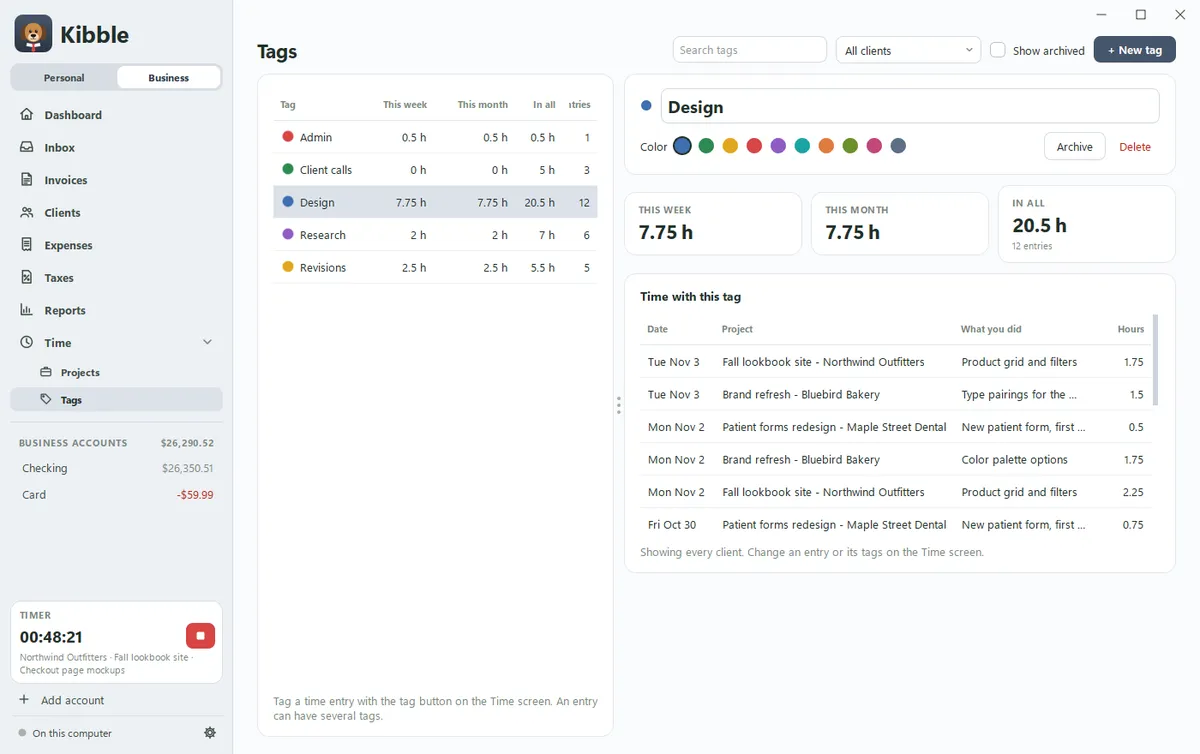
Tags sort your time by the kind of work, like design, client calls or admin, across every project. Click the tag button on any entry, or on the timer before you start, and pick as many tags as you like. Type a new name to make a new tag.
The Tags screen shows each tag’s hours this week, this month and in all, for one client or everyone, with the time entries that carry it. Rename a tag, change its color, archive it or delete it there. For a longer look, Business Reports has Hours by tag (see Business reports).
Can I track who did the work?
Yes, once you’ve added people on the Employees screen. Each entry gets a small button with initials for who did the work. It starts as you. Click it to pick someone else, or pick them on the timer before you start. Kibble uses their hourly cost to show labor cost by client in the Labor report (see Employees and contractors).
Where are Projects and Tags in the sidebar?
Under Time. While you’re on Time, Projects or Tags, the arrow next to Time opens them, indented underneath. On other screens they’re tucked away to keep the sidebar short.
Questions people ask
Can I add time I forgot to track?
Yes. On the Time screen, switch the bar to the pencil and type a start and end time, or use Add time with AI and describe it in your own words.
Can one time entry have more than one tag?
Yes. Tag an entry with as many tags as you like. It counts toward each of them on the Tags screen.
Does Add time with AI add anything on its own?
No. It shows the entries it read from your note, and nothing is added until you check them and click Add.
Do Clockify tags come along?
Yes. When Kibble imports from Clockify, each entry's tags come with it.
Still scratching your head?
Send us a note and a real person will get back to you.