Fetch for recruiters
Screen candidates with your full attention. Fetch takes the notes, files them by role, and remembers every detail.
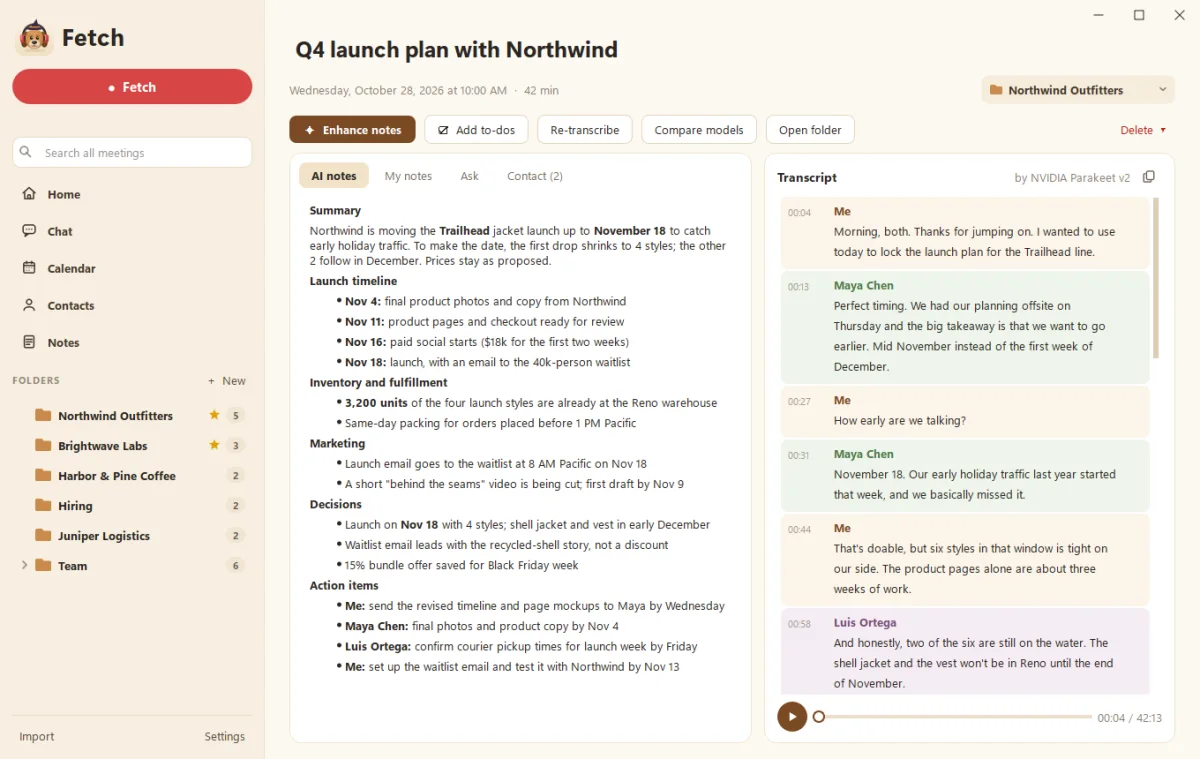
Recruiters talk to a lot of people, and every conversation has details worth keeping: notice periods, salary expectations, why they’re looking. Fetch records your calls on your Windows PC, with no bot joining, and writes clean notes after each one, so you can listen to the candidate instead of typing.
Full attention on the candidate
Typing while someone talks about their career is hard to hide. With Fetch recording, you can listen, ask better follow-ups, and jot only the odd rough note. After the call, Fetch turns the transcript and your fragments into a summary with key points and action items. See Enhance your notes.
No bot, no awkward intro
Candidates are already nervous. A bot named “Notetaker” in the call doesn’t help. Fetch records from your computer instead, and notices Zoom, Google Meet, Teams and Slack calls starting on its own. For phone screens on speaker or in-person interviews, press ● Fetch. Your lines show as “Me” and the candidate’s as “Them”, so the transcript is easy to read. See speaker labels.
A folder per role
Create a folder for each open role or client. Add trigger words like the job title or hiring manager’s name, and Fetch suggests the folder for each call, or files it automatically. Each folder keeps a running summary, open questions, to-dos and the people you’ve spoken with. See Folders and folder notes.
Find any detail later
“Which candidate mentioned a 60-day notice period?” Ask Fetch across all your calls, a role’s folder or one conversation. The answer comes back with a link to the exact moment. See Ask your meetings.
Know who’s next
Connect your calendar with a private calendar link and Fetch shows who’s coming a couple of minutes before each call. Recorded calls teach it about people over time, so returning candidates and hiring managers come with context. See Briefings before your calls.
Privacy for candidates
Candidate conversations are personal. Fetch transcribes on your PC and keeps audio in your own Documents folder. AI notes are optional, and they send text only to your own Claude or ChatGPT account. Delete any call when you’re done with it.
What it costs
Fetch is free during early access, with no minute limits, on Windows 10 and 11. Team sharing isn’t available yet, so it suits recruiters who keep their own notes and share summaries by email.
Questions people ask
Should I tell candidates I'm recording?
Yes, always. Recording laws differ by place and some require everyone's consent. A quick "I'm recording so I can focus on you, is that OK?" is good practice and good candidate experience.
Does Fetch work for phone screens?
Yes, if the call runs through your computer, or on speaker near your PC. Press the red Fetch button to record any conversation, not just video calls.
Can I share notes with a hiring manager?
Fetch has no team sharing yet. You can copy the AI notes or a folder summary as an email and send it yourself.
Still scratching your head?
Send us a note and a real person will get back to you.