Invoice emails and message templates
How to send Kibble invoices to several people at a client, start each email from a template you can edit, and write your own templates.
A client in Kibble can have several invoice emails, like the main contact plus accounts payable. The first email gets the invoice and the rest are copied in (CC). When you send, you start from a message template you can edit before it goes, and Kibble remembers the one you used last for each client. Change Kibble’s templates or write your own in Settings > Business > Invoice emails.
How do I add more than one email to a client?
- Open Clients and edit the client, or add one with + New client.
- Under Invoice emails, type an email, plus an optional name or label like AP or Manager.
- Click + Add email for each extra person. The first row is marked To and the others CC.
- Click Save.
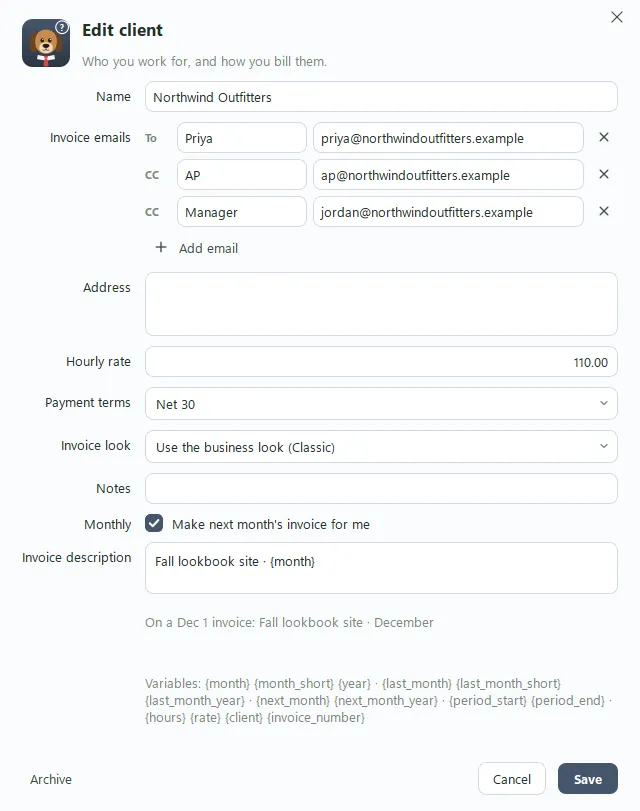
Late payment reminders, and retainer invoices that send on their own, also go to everyone on the list.
How do I pick a message when I send?
Click Send on an invoice or estimate. At the top of the window, pick a Template. The subject and message fill in with the client’s name, the amount, the due date and so on. Change anything you like, then click Send.
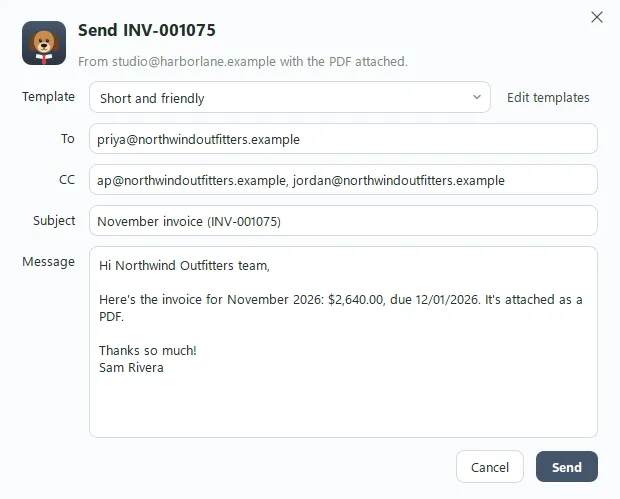
Kibble’s invoice templates are:
- Standard
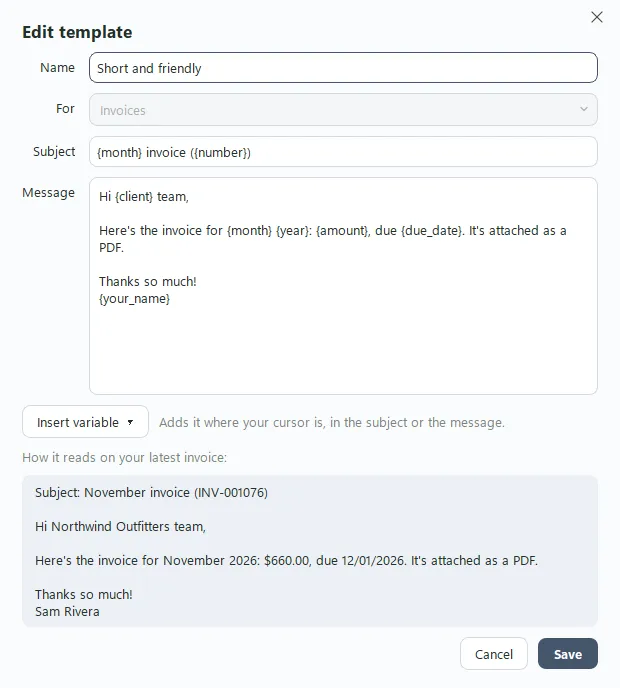
- Short and friendly
- Formal
- Thank you (repeat clients)
- With payment instructions, which adds your payment details
Estimates have their own Standard, Short and friendly and Formal. Next time you send to the same client, Kibble starts with the template you used last for them.
What happens after I click Send?
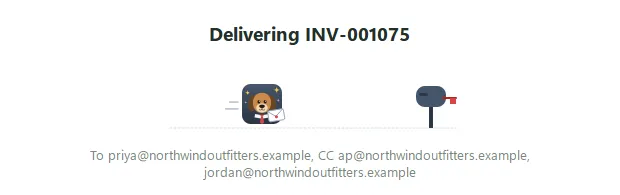
The window shows the dog in a tie carrying your invoice to a mailbox while Kibble makes the PDF and sends it from your Gmail. That takes a few seconds. When it’s done, it says Delivered! and the window closes by itself. If something goes wrong, the window comes back with what happened, and nothing is marked sent.
How do I change a template or write my own?
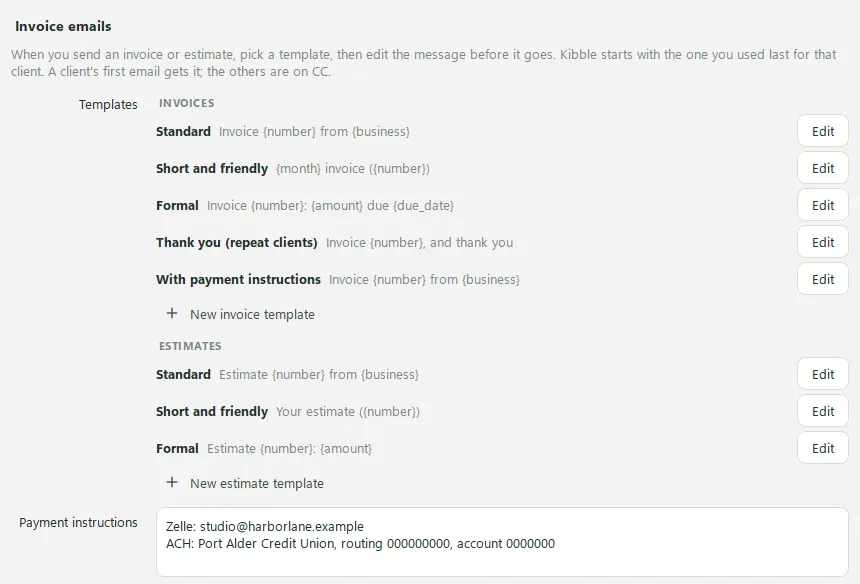
Open Settings > Business and find Invoice emails. Every template is listed with Edit.
- Click Edit to change the subject or message. Reset puts Kibble’s wording back.
- Click + New invoice template or + New estimate template to write your own. Yours have Delete instead of Reset.
- From the Send window, Edit templates opens the same editor.
What are variables?
Words in curly brackets that Kibble swaps for the real thing on each email. In the template editor, click where you want one, open Insert variable, and pick it. It’s added right at your cursor, in the subject or the message. A preview under the message shows how it will read.
| Variable | Becomes |
|---|---|
{to_name} |
The name or label on the client’s first (To) email, or the client’s name if it’s empty |
{client} |
The client’s name |
{your_name} {business} |
Your name and your business name |
{signature} |
Your name, then your business, on two lines |
{number} {amount} |
The invoice number and total, like INV-1027 and $1,500.00 |
{issue_date} {due_date} {terms} |
The date on it, when it’s due, and its terms |
{valid_until} |
For estimates: when it expires |
{payment_instructions} |
Your payment details, from Settings > Business |
{month} {year} |
The month and year it’s dated, like November 2026 |
{last_month} {last_month_year} |
The month before, like October 2026 |
{next_month} {next_month_year} |
The month after |
How do I add my payment details?
In Settings > Business > Invoice emails, type them in Payment instructions, like your Zelle address or bank transfer details. They fill in {payment_instructions}, which the With payment instructions template already uses. The invoice PDF itself doesn’t show them.
Questions people ask
Who gets the invoice when a client has several emails?
The first email on the client gets it. Everyone else on the list is copied in (CC). You can change both before you click Send.
Can I change Kibble's own templates?
Yes. Click Edit next to any of them in Settings > Business > Invoice emails. Reset puts Kibble's wording back.
Do reminders and retainers use my templates?
They go to all of the client's emails, the same way invoices do. Late reminders keep their own wording, which you can edit before you approve each one.
Still scratching your head?
Send us a note and a real person will get back to you.