Pre-made invoices
How Kibble makes next month's invoice for clients you bill every month, 5 days early, so you only review, approve and send it.
If you bill a client every month, Kibble makes next month’s invoice for you, 5 days before you usually send it. It shows up with the status Review. Check it, then Approve it (it becomes a draft you send), Skip this month, or Stop it for that client. Nothing is sent without you.
Which clients get one?
- Clients you’ve invoiced two months in a row. Kibble learns the day of the month you usually send their invoice.
- Monthly retainers that you review before sending. Retainers set to send on their own still go out on the 1st, as before (see Monthly retainers).
If a client goes 2 months without an invoice, Kibble stops making them.
What’s on the invoice?
Kibble fills it in the way you would:
- The same lines as last time, when your last two invoices to that client matched.
- Otherwise, the hours you tracked that month at the client’s rate.
- Otherwise, last month’s hours, with a note asking you to check them.
It also continues the client’s own invoice numbers when they count up one by one, like INV-1125, INV-1126, INV-1127.
Where do I find them?
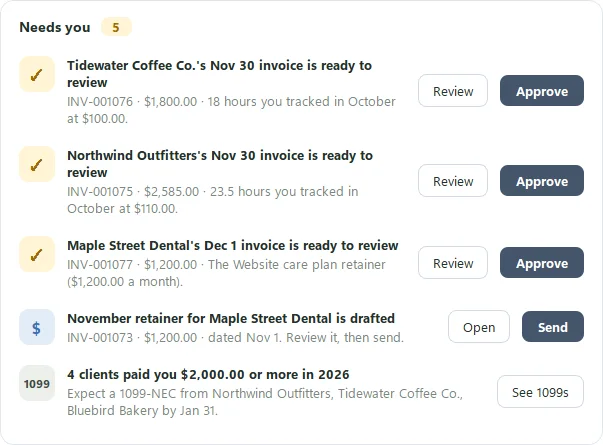
- Dashboard > Needs you lists each one, with Review and Approve buttons. A pop-up lets you know when a new one is ready.
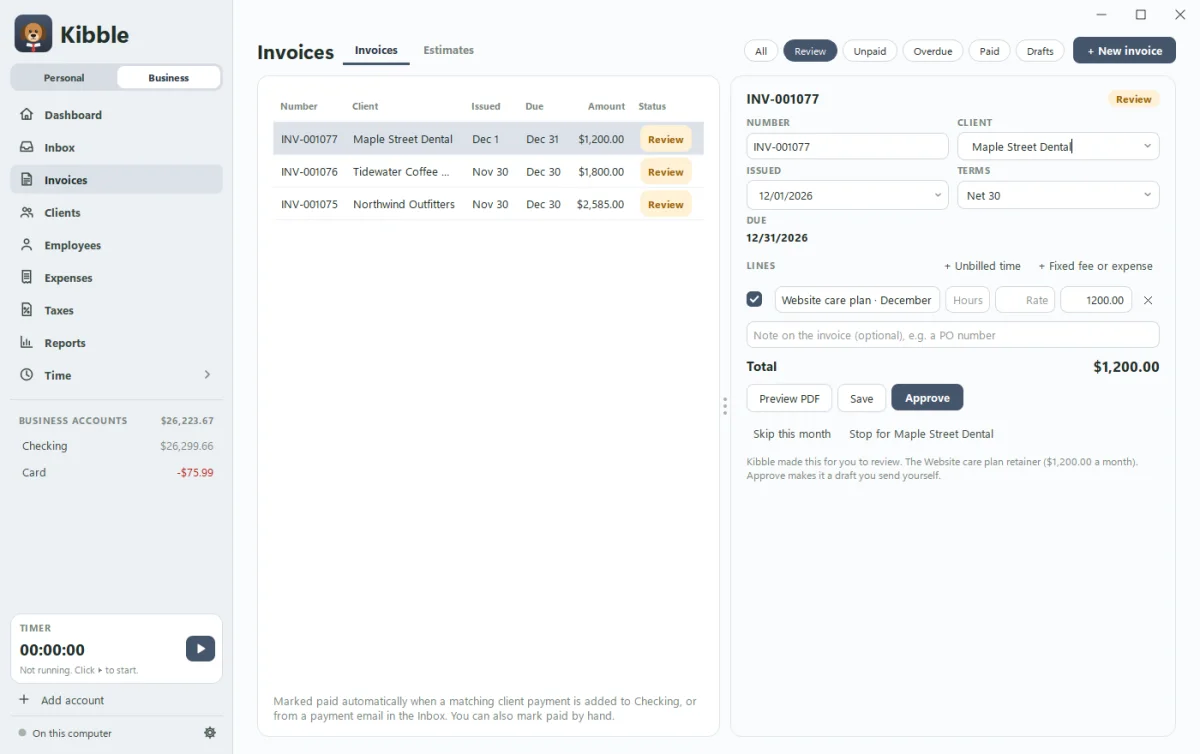
- Invoices has a Review filter with a count, so you can see them all at once.
Open one to see why Kibble made it, change anything you like, then pick Approve, Skip this month or Stop for the client.
Can the description fill in the month for me?
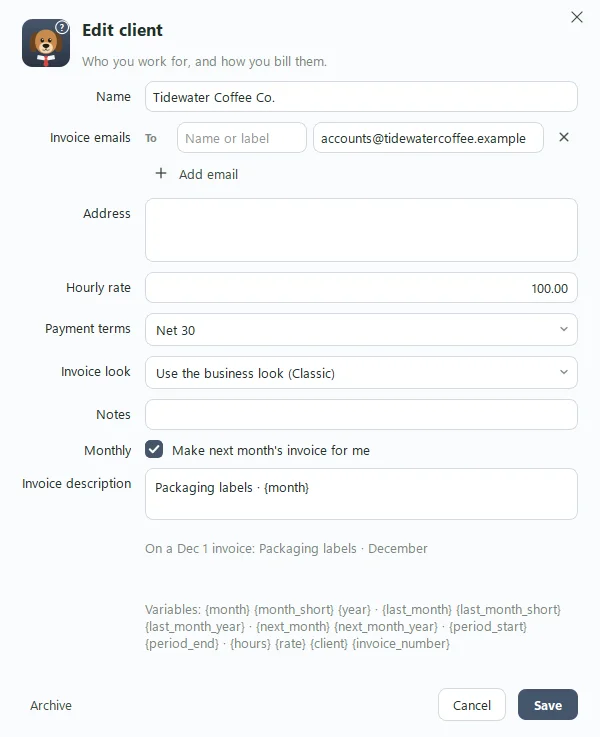
Yes. In Clients, edit the client and look at Invoice description. Kibble writes one from your last invoice to them, and you can change it. Variables are swapped for the real values on each invoice:
| Variable | Becomes, on a November 1 invoice |
|---|---|
{month} {year} |
November 2026 |
{last_month} {last_month_year} |
October 2026 |
{next_month} {next_month_year} |
December 2026 |
{period_start} {period_end} |
Oct 1, 2026 and Oct 31, 2026 (the month the work was done) |
{hours} {rate} {client} {invoice_number} |
This invoice’s hours, rate, client and number |
So “Consulting services for {last_month} {last_month_year}” becomes “Consulting services for October 2026”. A live example under the box shows what the next invoice will say.
How do I turn it off?
Click Stop for the client on any pre-made invoice, or in Clients > edit, untick Make next month’s invoice for me. Tick it again any time to start over.
Questions people ask
Does Kibble send a pre-made invoice by itself?
No. A pre-made invoice waits with the status Review. Approve makes it a draft, and you send it like any other invoice.
Does a pre-made invoice count as money owed?
No. Invoices in Review aren't counted as unpaid and can't be sent until you approve them.
Can I turn it off for one client?
Yes. Click Stop for the client on the invoice, or untick Make next month's invoice for me in Clients > edit.
Still scratching your head?
Send us a note and a real person will get back to you.