Hunt profiles and schedules
How to run separate job hunts with Hunter profiles, and how to schedule hunts for the days and times you choose.
A profile is one job hunt: one person looking for one kind of role. Each has its own experience bank, search settings, logins and schedule. Hunter hunts on its own at the times you choose, by default 7:00 AM and noon, Monday to Friday, plus whenever you click Hunt now.
When would I use more than one profile?
- You’re looking at two different kinds of roles, like “Director of Marketing” and “Head of Growth”, and want different resumes and scores for each.
- Two people in the house are job hunting.
- You want to try a different search without touching your main one.
How do I add a profile?
Open Settings > Profiles and click Add a profile. Hunter walks you through the setup steps from About you onward. Or click Duplicate to copy the current profile, which copies everything except applications and logins.
Switch between profiles with the picker at the top of the sidebar. To remove one, click Delete in Settings > Profiles. Resume files already saved in Documents are kept.
How do I change the schedule?
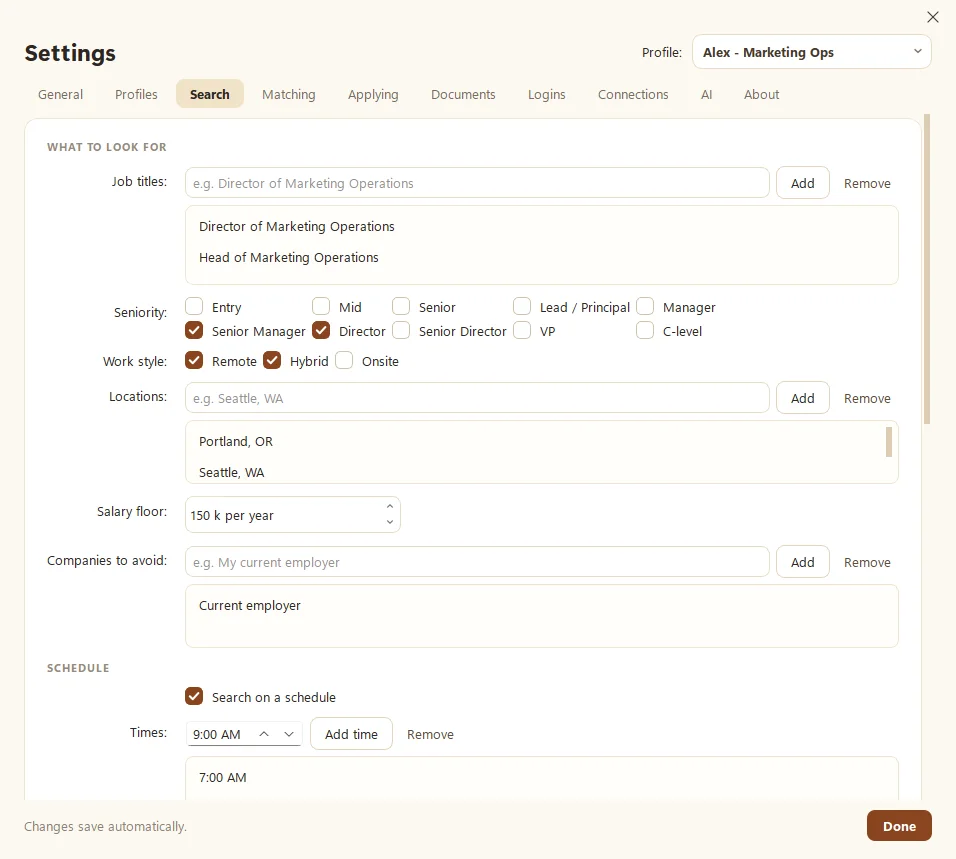
- Open Settings > Search and find Schedule.
- Tick Search on a schedule.
- Add or remove Times.
- Tick the Days you want.
Each profile has its own schedule, so different hunts can run at different times.
Why didn’t my scheduled hunt run?
Scheduled hunts only run while Hunter is open. Closing the window keeps it in the tray, near the clock, so that works too. Quitting it doesn’t. To make sure it’s always ready:
- Turn on Start Hunter when Windows starts in Settings > General.
- Leave Keep running in the tray when the window is closed on.
More in The tray icon and starting with Windows.
How do I know what a hunt found?
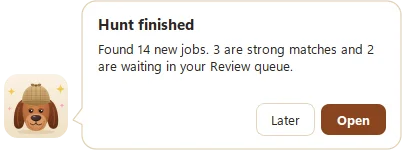
After each hunt, Hunter shows a short summary notice. Turn it off with Show a summary notice after each hunt in Settings > General if you prefer to just check New matches yourself.
If a site keeps blocking Hunter, it gets a week off on its own. See Why a job site got paused.
Questions people ask
Do scheduled hunts run when Hunter is closed?
No. They run while Hunter is open, including when it's minimized to the tray. Turn on Start Hunter when Windows starts so you never miss one.
Can two people share one Hunter?
Yes. Make a profile for each person. Each profile has its own experience, logins and applications.
Still scratching your head?
Send us a note and a real person will get back to you.