Build your experience bank
How to fill Hunter's experience bank from your resume or from scratch, and add stronger resume lines one at a time, in plain words.
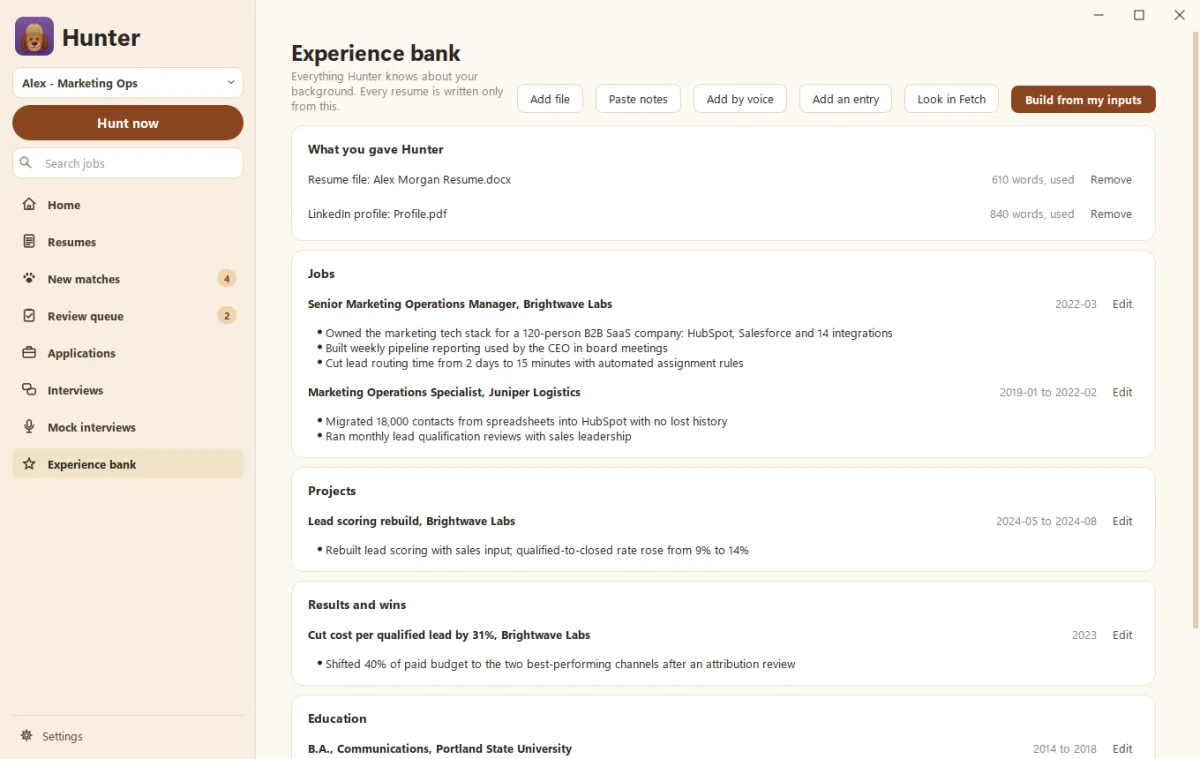
Your experience bank is everything Hunter knows about your work, and it’s the only thing Hunter writes resumes from. It’s grouped by job, with sections for projects, education, certifications and skills. Upload your current resume to fill it in, then add to any job in plain words. Hunter turns each note into a polished resume line, and you decide whether to keep it.
How do I fill it in?
Open Experience bank in the sidebar.
-
Upload resume: pick your resume (Word or PDF). Hunter reads it and fills in your jobs, education, projects, certifications and skills for you to check.
-
No resume? Click Add my first job, or use the Add a job, Add a project, Add education and Add a certification links on each section.
-
Look in Fetch: finds wins in your recorded meetings (see Prep for interviews with your Fetch notes).
-
Copy from a profile: reuse what’s in another profile’s bank (see Can I copy from another profile? below).
Each job shows its title, company, dates, a line about the company and the tools used. Click Edit details to change any of them. Every other line is lightly shaded so it’s easy to follow, and A- and A+ at the top change the text size. Hunter remembers the size you pick.
How do I add a line to a job?
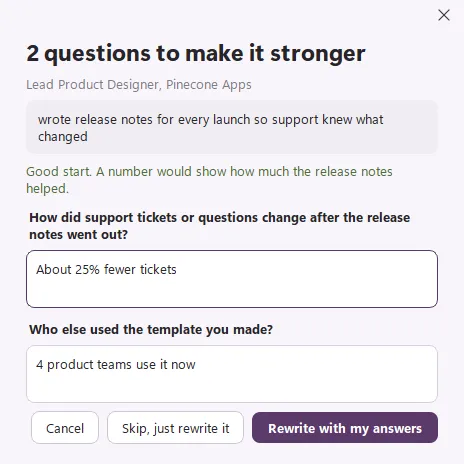
Under each job there’s a box. Type what you did in your own words, rough is fine, like “wrote release notes for every launch so support knew what changed”. Then pick one:
- Rewrite it: Hunter turns it into one polished resume line right away.
- Help me improve it: Hunter asks you 1 to 3 questions first, usually about numbers or who it helped, then writes a stronger line. Leave any answer blank if you don’t know.
- Say it: talk instead of typing. This uses Fetch’s speech engine, so Hunter offers to install Fetch if it isn’t on your PC.
Do I have to use Hunter’s wording?
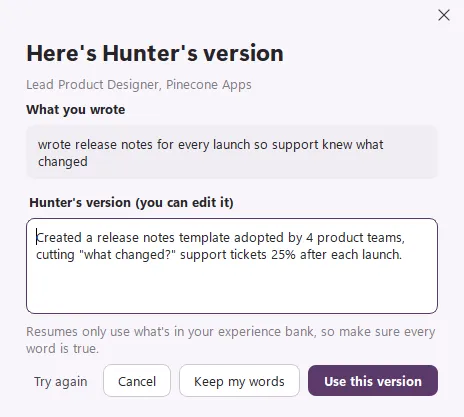
No. You see What you wrote next to Hunter’s version, which you can edit. Click Use this version, Keep my words, or Try again. Resumes only use what’s in the bank, so make sure every word is true.
How do I change a line that’s already there?
Hover over the line to see its buttons: Improve (Hunter asks a question or two, then suggests a stronger version), Edit, Move up, Move down and Remove.
Can I copy from another profile?
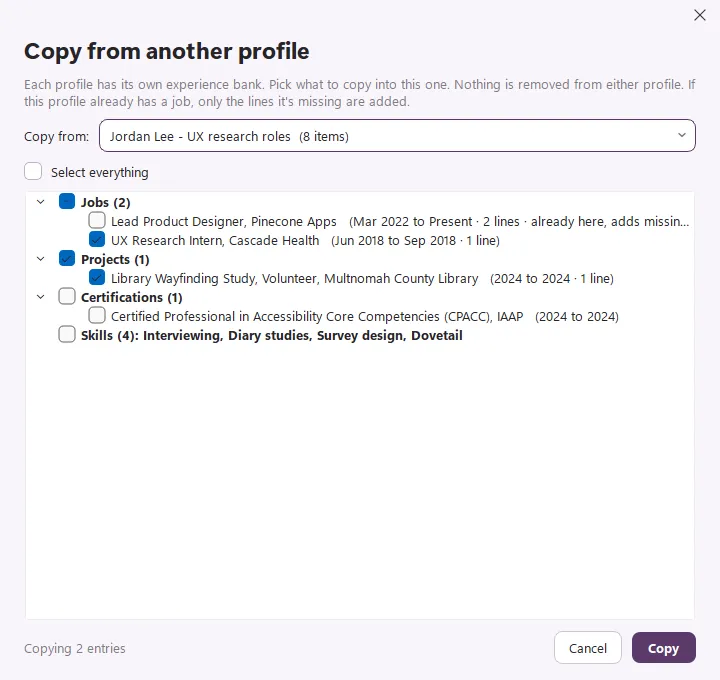
Yes. Each profile keeps its own bank, so a hunt for design jobs and a hunt for research jobs never mix. When one profile has something the other needs, click Copy from a profile at the top of the page.
- Pick the profile to copy from.
- Tick what to copy: a whole section like Jobs or Projects, single entries, or Select everything.
- Click Copy.
Nothing is removed from either profile. If this profile already has the same job, Hunter only adds the lines it’s missing.
Can Hunter tell me what to improve?
Yes. Click Critique my resume at the top of the page. Hunter looks up what a resume for your title should show, then suggests better lines. See Critique your resume.
Does the bank grow on its own?
A little, and only with your OK. Strong answers from mock interviews are added, and the scorecard tells you what was saved. Suggestions from Fetch meetings wait under Review suggestions, grouped by job, until you add them.
What’s next?
With a full bank, run your first hunt. Every resume Hunter writes from here comes from this page. See Tailored resumes and the fact check.
Questions people ask
Will Hunter invent experience I don't have?
No. Every resume is written only from your experience bank. When Hunter rewrites a line, you see your words and its version side by side and choose which to keep.
I don't have a resume. Can I still use Hunter?
Yes. Click Add my first job and add your jobs, education, projects, skills and certifications yourself, one at a time.
Does changing profiles change the experience bank?
Yes. Each profile has its own experience bank, so two people (or two kinds of job hunt) never mix. To reuse work from another profile, click Copy from a profile.
Can I make the text bigger?
Yes. Click A+ at the top of the page for larger text, or A- for smaller. Hunter remembers your size.
Still scratching your head?
Send us a note and a real person will get back to you.