The Calendar and interview replies
How Hunter's Calendar page sets aside time for interviews, shares calendars with Fetch, and drafts replies to recruiters with times you're free.
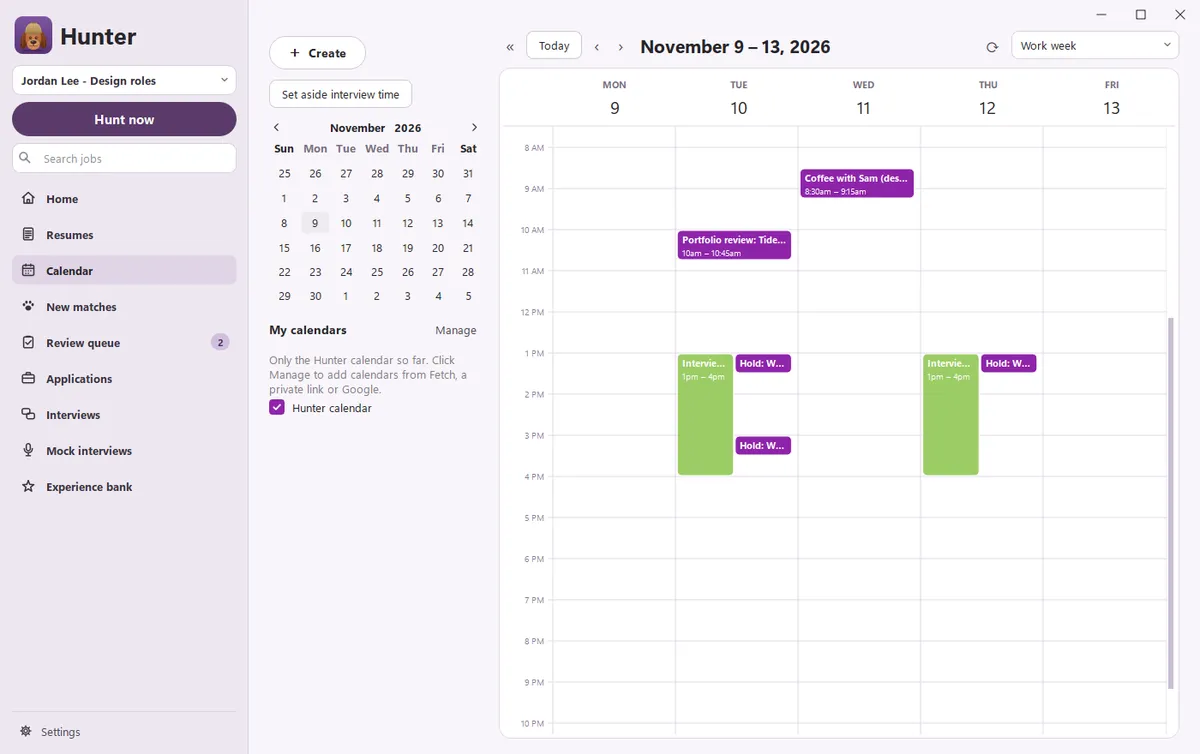
Hunter’s Calendar page shows your week, the time you’ve set aside for interviews, and any interviews coming up. When a recruiter asks to find a time, Hunter drafts a reply with times you’re free and waits for you. Nothing is sent until you click Send.
How do I add my calendars?
Open Calendar in the sidebar and click Manage (or go to Settings > Calendar). Then:
- Choose from Fetch… to use calendars you’ve already added in Fetch. Hunter and Fetch share them, so you only set them up once.
- Add a private link… to add a calendar’s secret address (.ics) from Google Calendar or Outlook. Tick Also add it to Fetch if you use Fetch too.
- Add my Google calendar if you’ve connected Google in Settings > Connections.
For each calendar, choose Show (its events appear on the Calendar page) and Blocks interview times (its events count as busy when Hunter suggests times). Private links are stored encrypted on your PC.
How do I set aside time for interviews?
On the Calendar page, click Set aside interview time and block the hours when you’re happy to interview. Hunter offers those hours first. If you haven’t set any aside, it uses When you can interview in Settings > Calendar: the days, hours, interview length, and the earliest time it may offer.
How do drafted replies work?
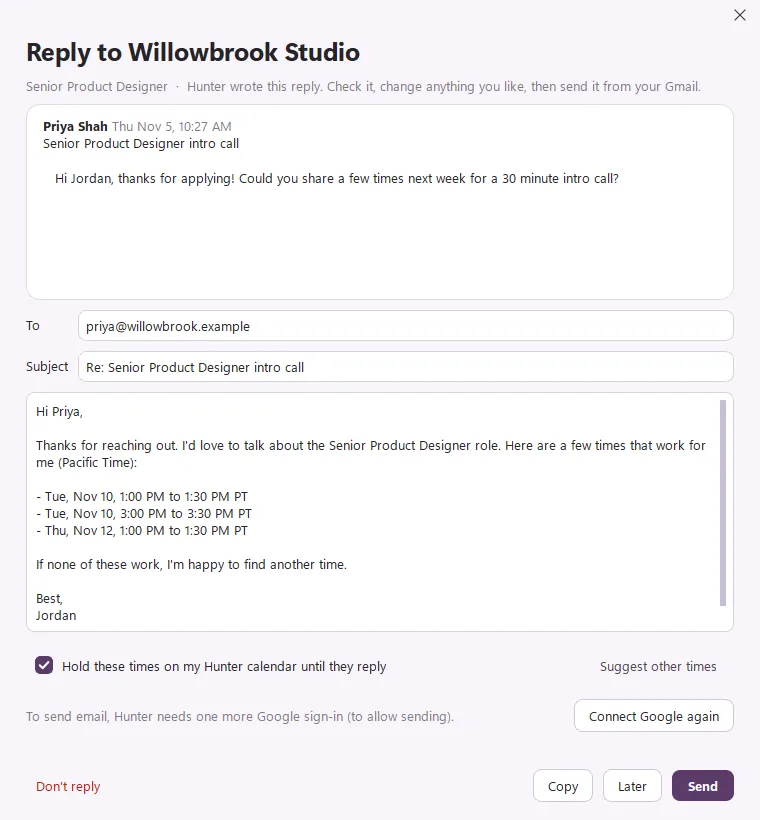
With Gmail connected (see Connect Gmail, Calendar and Sheets), Hunter reads emails about your applications. When a company asks to schedule a call, Hunter writes a reply that offers a few free times. Home shows it under To do with a Review reply button.
In the reply window you can:
- Read their email, then edit the reply, the To address and the Subject.
- Keep Hold these times on my Hunter calendar until they reply ticked, so those times stay free.
- Click Suggest other times to swap in different free times.
- Send it from your Gmail, Copy it to send yourself, choose Later, or Don’t reply.
The first time you send, Hunter asks for one more Google sign-in, to allow sending email. Click Connect Google again and tick the box to send email.
What about follow-ups?
Applications with no reply for a while show on Home under Follow-ups. Click Write follow-up and Hunter drafts a short, polite note the same way. Change how long Hunter waits in Settings > Applying > Follow up after.
Where do interviews go?
Interviews show on the Calendar page, on Home under This week, and on the Interviews page with a prep sheet. On Home, each one has Prep sheet and Mock interview buttons. See Interview prep sheets.
Questions people ask
Will Hunter email a recruiter without asking me?
No. Hunter drafts the reply, and it's only sent when you click Send. You can also copy it and send it yourself.
Do I need Fetch to use the Calendar?
No. Hunter has its own calendar, and you can add a private calendar link or your Google calendar. If Fetch is installed, you can also use the calendars you've added there.
What happens to the times I offered?
They're held on your Hunter calendar until the company replies, so Hunter doesn't offer the same time to someone else.
Still scratching your head?
Send us a note and a real person will get back to you.