Fetch for consultants
Client calls without a bot in the room, notes filed by client, and a memory that never forgets what was agreed.

Consultants live in meetings, and the job depends on remembering exactly what each client said. Fetch records your calls on your own Windows PC, with no bot joining, writes the transcript on your computer, and files each call under the right client. Weeks later, you can ask “what did Northwind agree about phase two?” and get the answer with a link to the moment it was said.
No bot in front of the client
Bots that join calls as “Notetaker” can feel awkward with clients, and some client companies block them. Fetch records your microphone and your computer’s sound instead. It notices Zoom, Google Meet, Teams and Slack calls starting, and you can press ● Fetch for anything else, like a phone call on speaker or a workshop in a meeting room. See bot-free recording.
Client confidentiality
Client conversations are often covered by an NDA. Fetch turns speech into text on your PC, and keeps the audio as MP3 files in your Documents folder. There’s no Soggy Dog cloud account holding your calls. If you connect Claude or ChatGPT for AI notes, only text goes to your own account, never audio. More on our Security page.
A folder per client
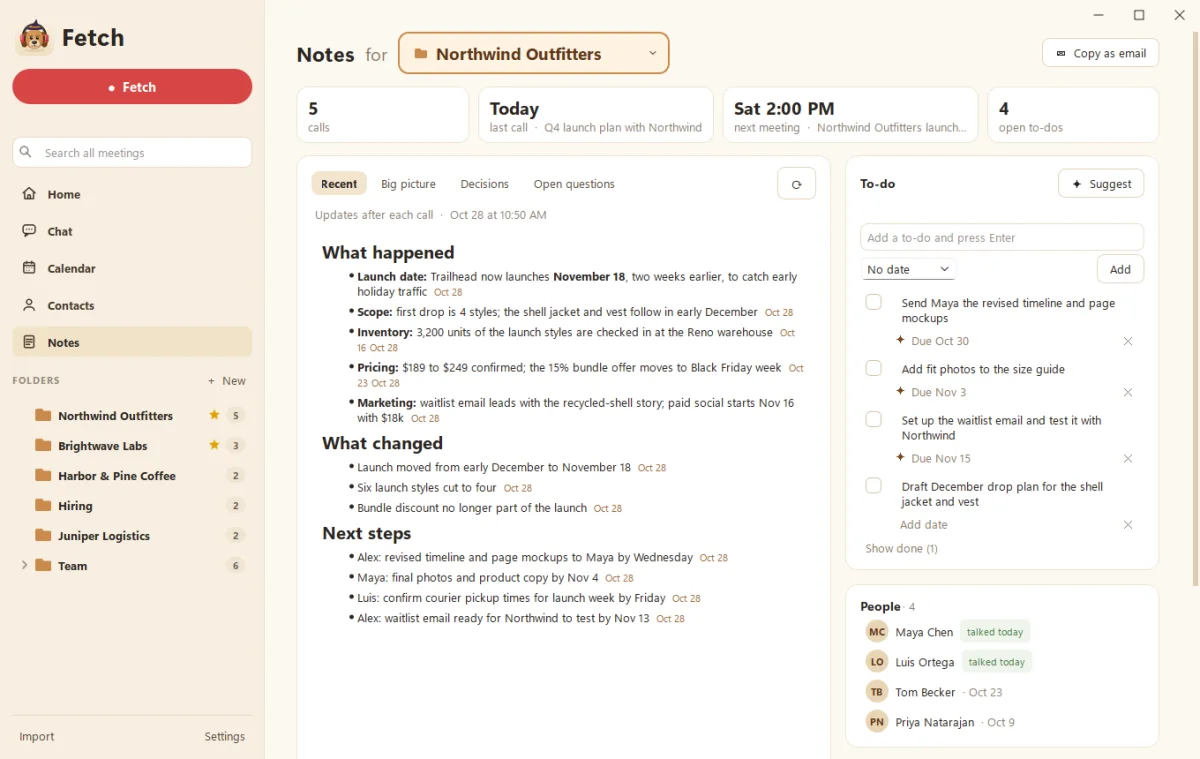
Make a folder for each client or project. Every folder’s name is a trigger word, and you can add more, like people or code names you only discuss with that client. When a call mentions them, Fetch suggests the folder or files it automatically.
Each folder gets a Notes page: a running summary with Recent, Big picture, Decisions and Open questions, plus to-dos and people across every call. It’s the status report you were going to write on Friday. See Folders and folder notes.
“What did we agree?”
Scope creep starts with fuzzy memories. Ask Fetch about one call, a client’s folder or everything, and it answers in plain words with a link to the call and the exact moment. “When did they first ask about SSO?” takes seconds, not an afternoon of scrolling. See Ask your meetings.
Walk into every call prepared
Connect your calendar with a private calendar link, and Fetch pops up a couple of minutes before each meeting with who’s coming and what you know about them. Every call you record teaches it a little more, like what you discussed last time. We wrote about the habit in Five minutes before every meeting.
After the call
Fetch writes AI notes with a summary, decisions and action items, working in your own rough notes. Tick the action items you own and they join your to-do list. Copy a folder’s summary as an email for a quick client update.
What it costs
Fetch is free during early access, with no minute limits. It runs on Windows 10 and 11. AI notes use your own Claude or ChatGPT plan.
Curious what all those meetings cost your client? Try the meeting cost calculator.
Questions people ask
Will my client see a bot in the call?
No. Fetch records from your Windows PC, so nothing joins the meeting. Tell your client you're taking notes with a recorder, as you would anyway.
Where are client recordings kept?
On your own PC, in a folder per call under Documents\Meeting Notes. Transcription happens on your computer. Only text goes to your own Claude or ChatGPT account if you turn on AI notes.
Can I keep each client separate?
Yes. Make a folder per client, add trigger words like project code names, and Fetch suggests or files calls automatically. Each folder has its own running summary and to-dos.
Still scratching your head?
Send us a note and a real person will get back to you.