Send your calls to HubSpot
How to connect HubSpot to Fetch, log calls and AI notes to contacts or their company, add new people, and turn to-dos into HubSpot tasks.
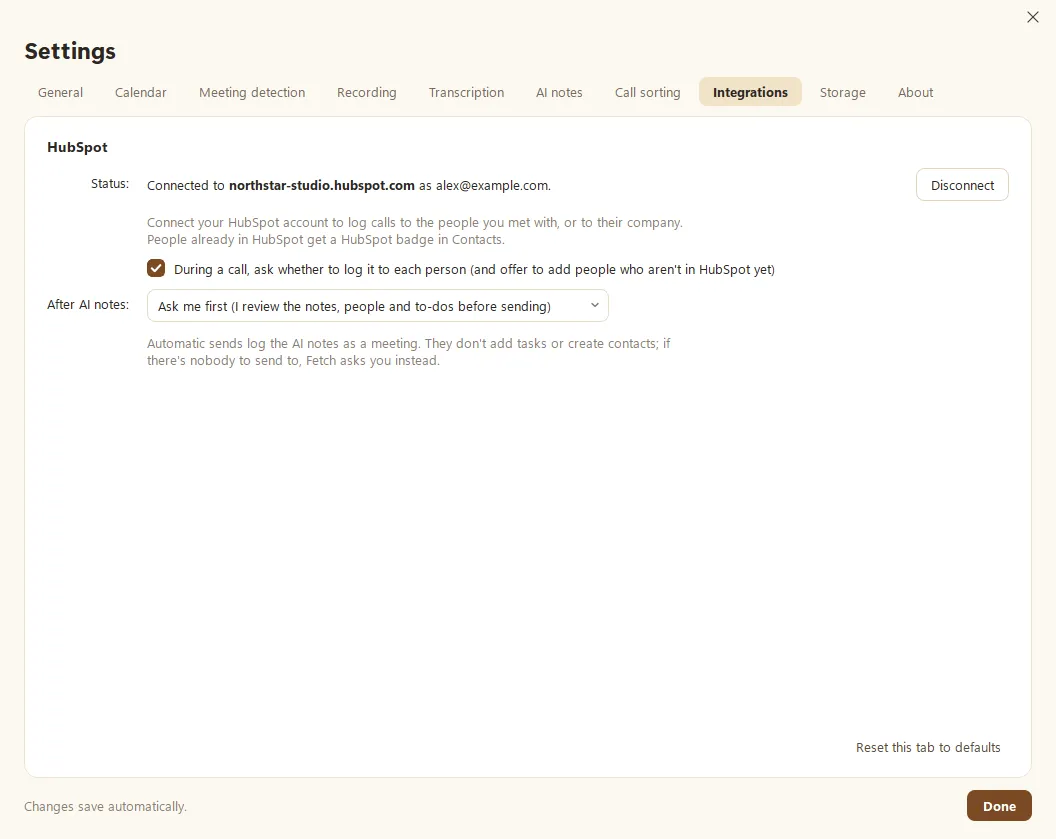
Fetch can log your calls in HubSpot for you. Open Settings > Integrations, click Connect HubSpot and sign in to HubSpot in your browser. From then on, Fetch knows which of your contacts are in HubSpot, asks during a call who to log it to, and sends the AI notes when they’re ready, with the to-dos you pick as HubSpot tasks.
How do I connect HubSpot?
- Open Settings > Integrations.
- Click Connect HubSpot. Your browser opens HubSpot’s sign-in page.
- Sign in and pick the HubSpot account to connect, then come back to Fetch.
Fetch shows Connected to your HubSpot account. No API keys or copying codes. Your HubSpot sign-in is stored encrypted on your computer.
How do I know who’s in HubSpot?
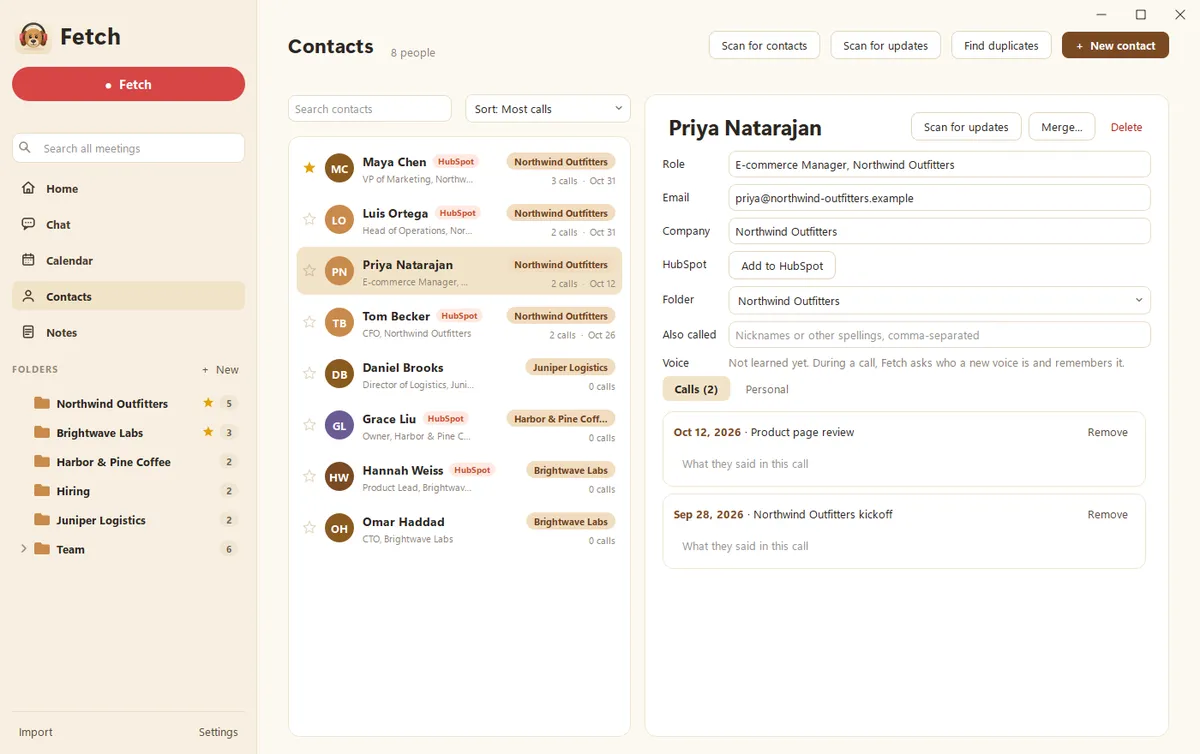
Once you connect, Fetch checks your contacts’ email addresses in HubSpot. Anyone it finds gets a HubSpot badge in Contacts, and their profile has a link to open their HubSpot record.
For anyone else, click Add to HubSpot on their profile. HubSpot needs an email address to create a contact, so Fetch asks for one if it doesn’t have it.
What happens during a call?
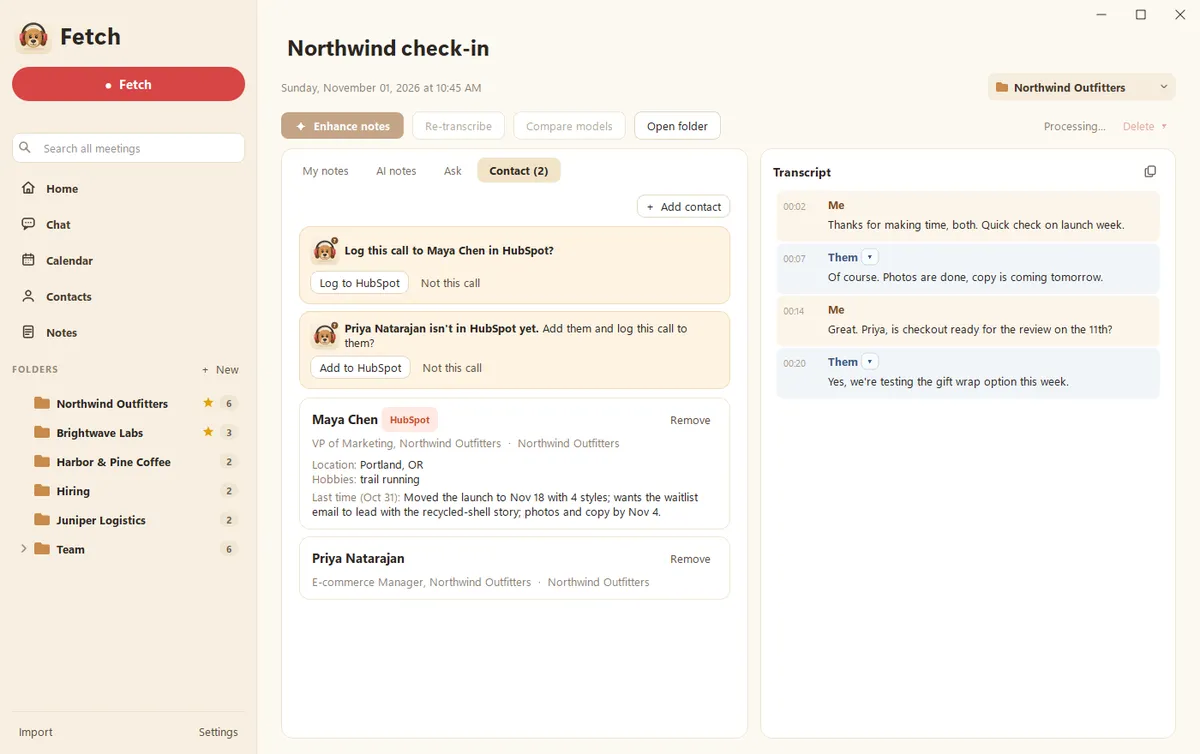
When you add someone to a call, Fetch asks on the call’s Contact tab:
- Log this call to them in HubSpot? for people already in HubSpot. Click Log to HubSpot or Not this call.
- They aren’t in HubSpot yet. Click Add to HubSpot to create them and log the call to them too.
Your answers wait with the call, so nothing is sent until the notes are ready. Don’t want to be asked? Untick During a call, ask whether to log it to each person in Settings > Integrations.
How do the notes get to HubSpot?
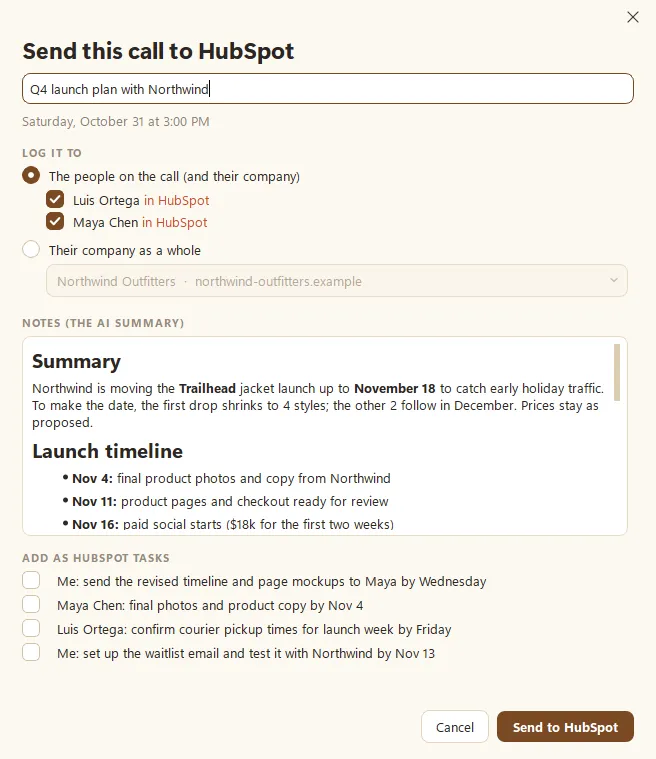
When the AI notes are ready, a pop-up offers to send them. Click Review and send and check everything first:
- Log it to the people on the call (and their company), or to their company as a whole.
- Read the notes that will be sent. You can change the title at the top.
- Tick any to-dos you want as HubSpot tasks. None are ticked unless you pick them.
- Click Send to HubSpot.
The call shows up in HubSpot as a meeting, with the AI summary attached. You can also send any call later with the Send to HubSpot button on the call.
Can Fetch send the notes on its own?
Yes. In Settings > Integrations, change After AI notes to one of these:
- Ask me first. The pop-up described above. This is the default.
- Send automatically to the people on the call who are in HubSpot.
- Send automatically to their company as a whole.
- Do nothing. Use Send to HubSpot on a call whenever you want.
Automatic sends log the AI notes as a meeting. They don’t add tasks or create contacts. If there’s nobody to send to, Fetch asks you instead.
How do I disconnect?
Click Disconnect in Settings > Integrations. Calls you already sent stay in HubSpot, and the badges disappear from Contacts.
Questions people ask
Can Fetch change or delete my HubSpot records?
No. Fetch only adds things you approve. It logs meetings, adds tasks, and creates the contacts you say yes to. It never edits or deletes what's already in HubSpot.
Do I need an API key?
No. Click Connect HubSpot, sign in to HubSpot in your browser, and you're done.
Does my audio go to HubSpot?
No. Only the AI notes (and any to-dos you pick) are sent. Your recording and full transcript stay on your computer.
What happens to calls I already sent if I disconnect?
They stay in HubSpot. Disconnecting only stops Fetch from sending anything new.
Still scratching your head?
Send us a note and a real person will get back to you.