How to log your calls to HubSpot without typing them up
What a good call log includes, and how to get it into HubSpot without retyping your notes.
The best way to log calls to HubSpot is to write a short summary while the call is still fresh: what was discussed, what was decided, and who does what next, then turn each follow-up into a task. The fastest way is to let a meeting notetaker write that summary for you and send it to HubSpot in one click, so the log happens even on your busiest days.
Why calls go missing from the CRM
Everyone agrees calls should be logged. Few people do it every time. The call ends, the next one starts, and “I’ll write it up later” becomes never.
That costs more than it looks. When a colleague opens the contact a month later, there’s nothing there. When you pick the deal back up, you’re guessing what was promised. And reports built on HubSpot activity quietly undercount the work you did.
The fix isn’t more willpower. It’s making the log so small, or so automatic, that skipping it takes more effort than doing it.
What a good call log includes
A useful log answers five questions. Anything more is optional.
- Who was there? The people, so the call shows up on each of their records.
- What was it about? One or two sentences of summary.
- What did we decide? Prices, dates, scope, a yes or a no.
- What happens next? Each follow-up, with an owner and a date.
- Anything personal worth remembering? A new role, a trip, a busy season. It makes the next call warmer.
A template you can copy
Paste this into the notes of a logged meeting in HubSpot:
Summary: Northwind wants to launch on Nov 18 instead of early December, with 4 styles instead of 6.
Decisions: Prices stay at $189 to $249. The bundle offer moves to Black Friday week.
Next steps: Me: revised timeline to Maya by Wednesday. Maya: final photos by Nov 4.
People: Maya Chen (VP Marketing), Luis Ortega (Operations).
Personal: Maya just got back from a trail race in Bend.
Five lines, two minutes, and anyone on your team can pick up where you left off.
How to log a call by hand
- Open the contact (or the company) in HubSpot.
- Log a new meeting or call activity, and set the date and time it happened.
- Paste your five lines into the notes.
- Check that the other people and their company are associated, so the call shows on every record.
- Create a task for each of your follow-ups, with a due date.
It works. It’s also exactly the part that gets skipped at 5:45 PM on a Thursday.
Make the notes write themselves
Most of the time goes into step 3: remembering and typing what happened. A meeting notetaker can take that off your plate. It records the call, writes the transcript, and turns it into a summary with decisions and action items. We cover the options in How to take meeting notes without typing a word.
Send it to HubSpot in one click
Fetch now connects to HubSpot. Click Connect HubSpot in Fetch’s settings, sign in, and Fetch takes care of the rest:
- It knows who’s in HubSpot. People already in HubSpot get a badge in Fetch’s Contacts. Anyone new can be added with one click.
- It asks during the call. When you add people to a call, Fetch asks whether to log the call to each of them, and offers to add anyone who isn’t in HubSpot yet.
- It sends the notes when they’re ready. You review the people, the AI summary and the follow-ups, tick the ones you want as HubSpot tasks, and click Send to HubSpot. Log it to the people on the call, or to their company as a whole.
- Or it sends them for you. If you’d rather not review each one, Fetch can send the notes automatically as soon as they’re written.
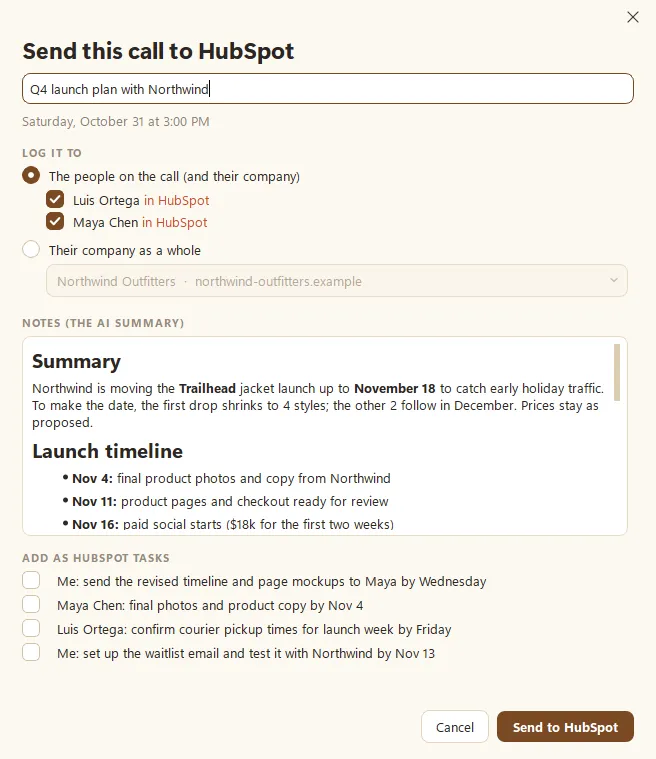
Your recording and full transcript stay on your own Windows PC. Only the notes and the tasks you pick go to HubSpot, and Fetch never edits or deletes anything already there. The step-by-step guide is in Send your calls to HubSpot.
Start with your next call
Pick the next customer call on your calendar and log it the same day, by hand or with a notetaker. Do it for a week. The first time a colleague says “I saw your notes on Northwind,” you’ll know it was worth it. And your CRM will finally remember as much as a good dog remembers where the treats are kept.
Questions people ask
Should I log every call to HubSpot?
Log every call with a customer, prospect or partner. Internal calls usually don't belong on a contact's record unless they decide something about that account.
Should I log a call to the person or the company?
To the person when it's about them, like a first call or a follow-up they own. To the company when several people were there, or when the call is about the account as a whole. The company record then shows the full history in one place.
Do I need to paste the whole transcript?
No. A short summary, the decisions and the next steps are what your team will actually read. Keep the full transcript somewhere you can search if you need the exact words.
Still scratching your head?
Send us a note and a real person will get back to you.