Turn off practice mode
What Hunter's practice mode does, why it starts on, and how to let Hunter submit strong-match applications by itself when you're ready.
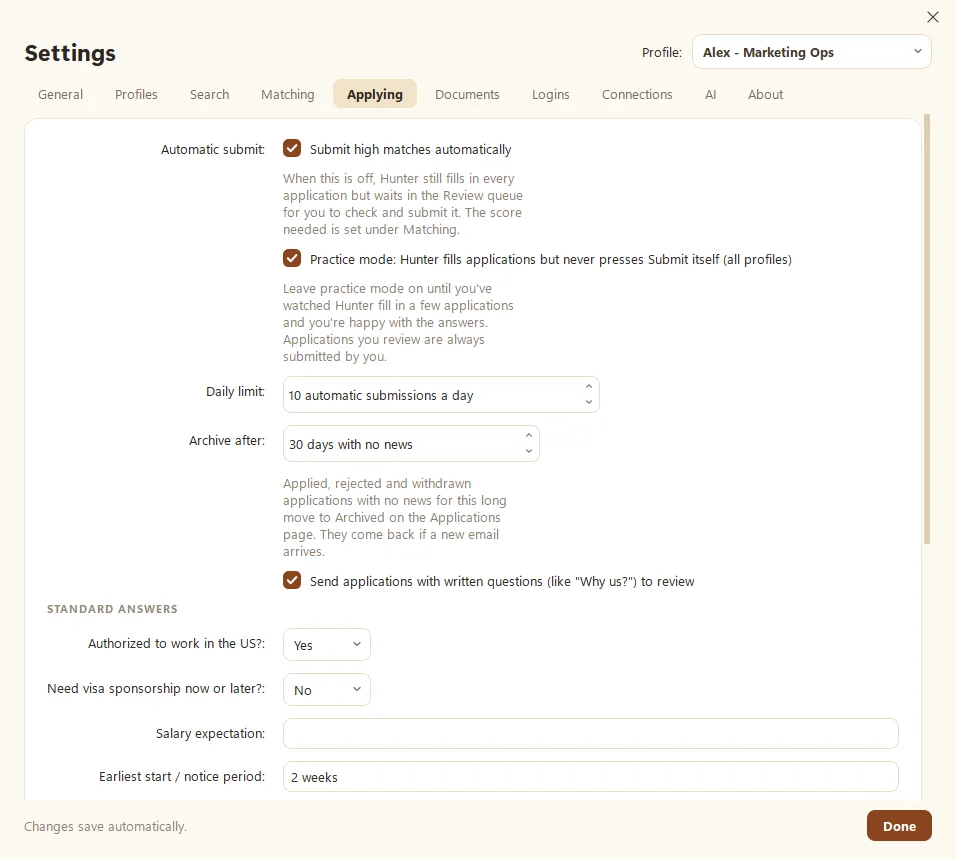
Practice mode lets Hunter fill in job applications but never press Submit by itself. It’s on when you install Hunter and stays on until you turn it off. To let Hunter submit strong matches automatically, open Settings > Applying and untick Practice mode.
Why does practice mode start on?
Because a job application is hard to take back. We’d rather you watch Hunter fill in a few applications, check its answers, and decide you trust it. Think of it as a few walks on the leash before going off-leash at the park.
How do I turn it off?
- Open Settings > Applying.
- Untick Practice mode: Hunter fills applications but never presses Submit itself (all profiles).
- Make sure Submit high matches automatically is ticked. This is the Automatic submit setting.
That’s it. From now on, jobs that score at or above your automatic level (85 by default) can be submitted by Hunter, up to your daily limit.
What still waits for me?
Even with practice mode off, Hunter sends these to the Review queue for you:
- Jobs that score between your review level (60 by default) and your automatic level.
- Applications with written questions like “Why us?”, unless you untick Send applications with written questions to review.
- Anything Hunter isn’t sure how to answer.
And when Submit high matches automatically is off, every application waits for your OK, even great ones.
How do I stay in control?
- Set the scores in Settings > Matching (see Understanding match scores).
- Cap automatic submissions per day (see Daily auto-apply limits).
- Add Deal-breakers and Companies to avoid. Your current employer is a popular choice.
- Check the Applications page. Everything Hunter sends shows up there.
Before you flip the switch
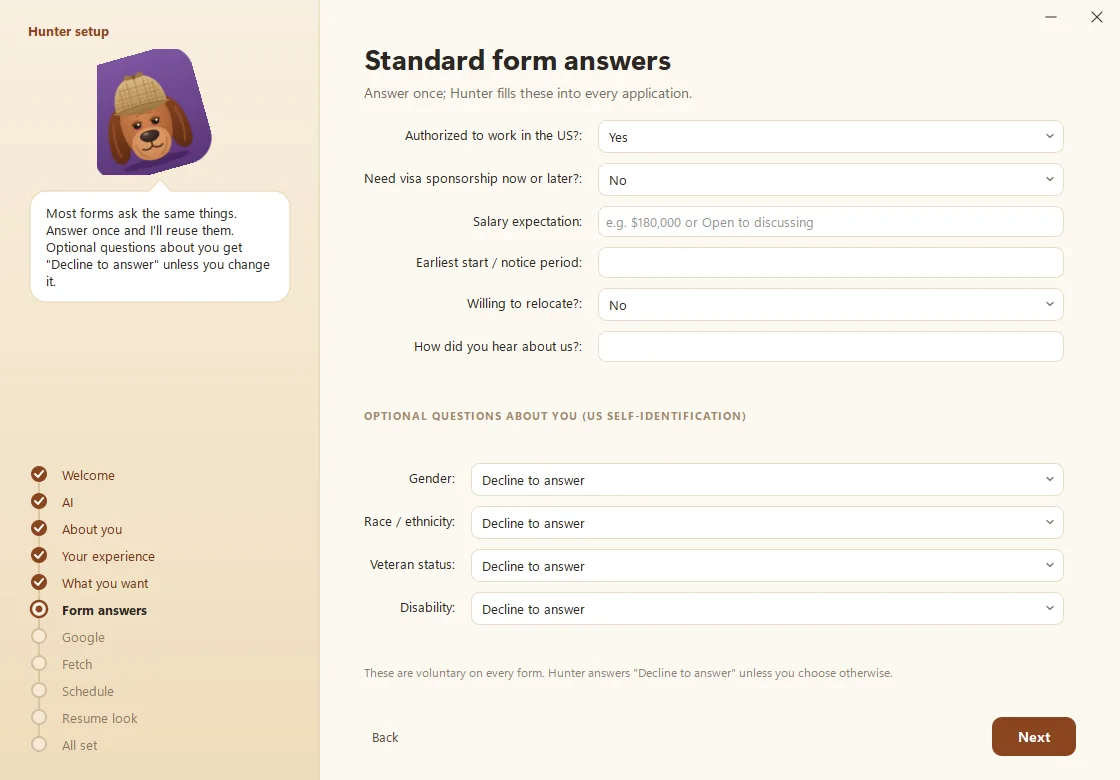
Fill in Standard answers in Settings > Applying: work authorization, sponsorship, salary expectation, start date, relocation, and how you heard about the job. Hunter reuses them on every form, so make sure they’re right.
Questions people ask
Does practice mode stop me from applying?
No. You can still review an application and submit it yourself. Practice mode only stops Hunter from pressing Submit on its own.
Is practice mode per profile?
No. It covers all profiles at once.
Can I turn it back on?
Yes, any time, in Settings > Applying.
Still scratching your head?
Send us a note and a real person will get back to you.