Invoice looks
How to pick one of Kibble's five invoice looks in your business color, give a client its own look, and preview it before you send.
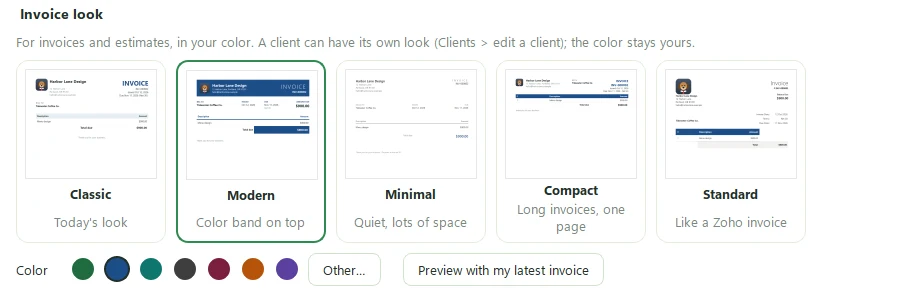
Kibble has five invoice looks: Classic, Modern, Minimal, Compact and Standard. Pick one in Settings > Business > Invoice look, choose your business color, and every new invoice and estimate uses them. A client can also have its own look.
Which look should I pick?
| Look | What it’s like | Good for |
|---|---|---|
| Classic | Kibble’s original invoice | Anyone who liked it before |
| Modern | A color band across the top, with your logo on it | A bold, branded feel |
| Minimal | Quiet, with lots of white space | Design and creative work |
| Compact | Fits long invoices on one page | Many lines of hours or items |
| Standard | A familiar accounting layout | Clients used to traditional invoices |
Each look is shown as a small picture in your color, so you can compare them side by side.
How do I change the look and color?
- Open Settings > Business and scroll to Invoice look.
- Click a look.
- Pick one of the seven color swatches, or click Other… for any color.
- Click Preview to see your latest invoice in that look.
Can a client have its own look?
Yes. In Clients, edit the client and pick an Invoice look. Their invoices and estimates use it, in your business color. Everyone else gets the look from Settings.
Where does my logo go?
Your logo prints on every look. On Modern, it sits right on the color band. Upload or change it in Settings > Business.
Questions people ask
Do estimates use the same look?
Yes. Estimates match the look of that client's invoices.
Can each client have a different color?
No. A client can have its own look, but the color is always your business color.
Does changing the look change invoices I already sent?
PDFs you already emailed stay as they were. New invoices, and any PDF you download again, use the new look.
Still scratching your head?
Send us a note and a real person will get back to you.