Import recordings and transcripts
How to bring audio, video and transcripts from Zoom, Teams, Google Meet, Otter or Word into Fetch so you can search them and get AI notes.
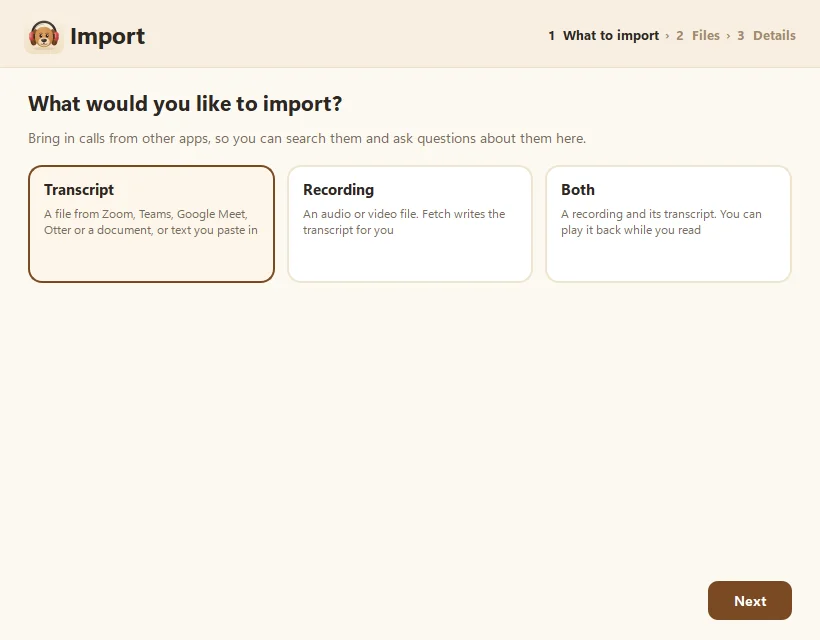
To import a meeting into Fetch, click Import at the bottom of the sidebar, then choose a Transcript, a Recording, or Both. Fetch transcribes recordings on your computer, reads transcripts from Zoom, Teams, Google Meet, Otter or Word, and turns each one into a regular call you can search and ask about.
How do I import a recording?
- Click Import and choose Recording.
- Click Choose file… and pick an audio or video file.
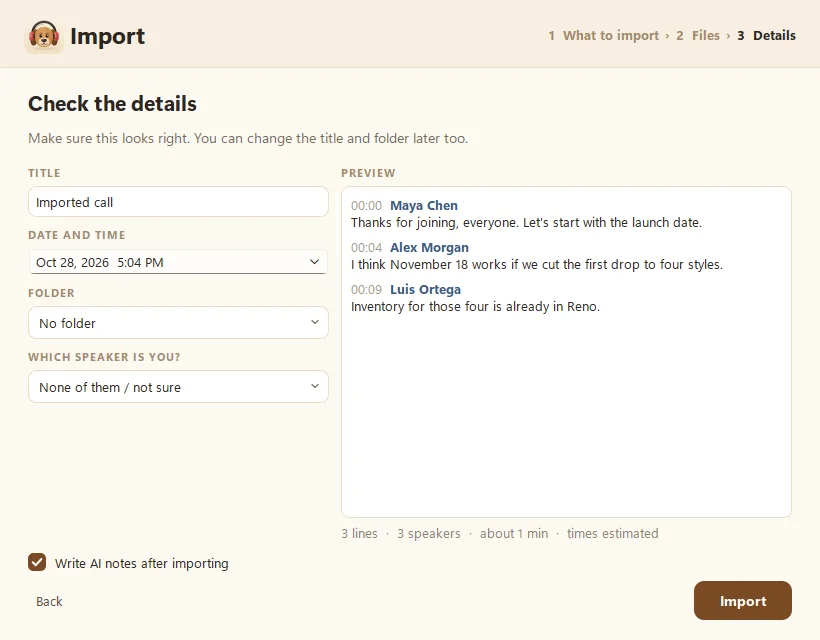
- On Check the details, set the title, date and time, and folder. Fetch fills in the file’s name and date to start.
- Leave Write AI notes after importing ticked if Claude or ChatGPT is connected (see Connect Claude or ChatGPT to Fetch).
- Click Import. Fetch writes the transcript for you.
How do I import a transcript?
- Click Import and choose Transcript.
- Click Choose file… (.txt, .md, .docx, .vtt or .srt), or tick Paste text instead and paste.
- Check the Preview. It shows the lines, speakers and rough length.
- Pick Which speaker is you? so your lines show as Me.
- Click Import.
If the text has no speaker names, Fetch offers Clean up with AI, which splits it into speaker lines and fixes punctuation without changing anyone’s words.
What does “Both” do?
Pick Both when you have a recording and its transcript, like a Zoom cloud recording and its .vtt file. You get the transcript right away, and you can play the audio while you read. Tick Re-transcribe the recording with Fetch if you’d rather Fetch write a fresh transcript instead. You can also re-transcribe any time later.
What happens to the original files?
Fetch makes its own copy in the meeting’s folder. Your original stays where it was.
Good to know
- Times are estimated for transcripts that don’t include them (about 150 words a minute). You’ll see “times estimated” in the preview.
- Coming from Granola? There’s a short guide just for you: Import from Granola.
Questions people ask
Which file types can I import?
Audio and video (MP3, WAV, M4A, AAC, OGG, OPUS, FLAC, WMA, MP4, MOV, MKV, WEBM) and transcripts (TXT, MD, DOCX, VTT, SRT), or pasted text.
Is imported audio transcribed on my computer?
Yes, with the same on-PC speech models Fetch uses for live calls.
Still scratching your head?
Send us a note and a real person will get back to you.