Choose a speech model
Which speech-to-text model Fetch should use for live transcripts and after-call clean-up, and how to pick one that fits your computer.
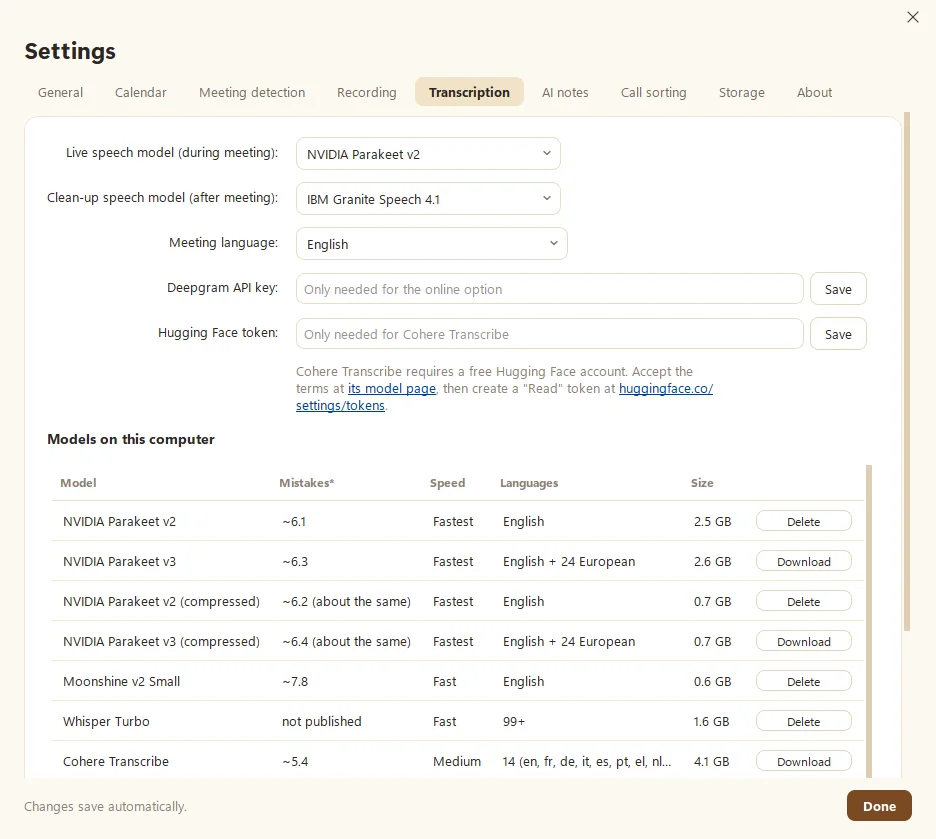
Fetch turns speech into text with a model that runs on your own computer. It uses two: a fast live model that writes the transcript during the call, and a careful clean-up model that tidies it after. Setup picks both for you based on your hardware. You can change them in Settings > Transcription. Why on your computer? See Local vs cloud transcription.
Which models are there?
| Model | Best for | Languages | Download |
|---|---|---|---|
| NVIDIA Parakeet v2 | Live notes (the usual pick) | English | 2.5 GB |
| NVIDIA Parakeet v3 | Live notes in other languages | English + 24 European | 2.6 GB |
| Parakeet v2 or v3 (compressed) | Live notes on lighter computers | Same as above | 0.7 GB |
| Moonshine v2 Small | Live notes on low-memory computers | English | 0.6 GB |
| Whisper Turbo | Live or clean-up, any language | 99+ | 1.6 GB |
| IBM Granite Speech 4.1 | Clean-up, top accuracy (the usual pick) | 6 | 4.8 GB |
| Cohere Transcribe | Clean-up (needs a free Hugging Face token) | 14 | 4.1 GB |
| Whisper Large v3 | Clean-up, rare languages | 99+ | 3.1 GB |
Settings > Transcription also lists each model’s Mistakes (wrong words per 100 on a public test) and speed.
How do I change the model?
- Open Settings > Transcription.
- In Models on this computer, click Download next to the model you want. You can keep using Fetch while it downloads.
- Pick it under Live speech model or Clean-up speech model.
To save disk space, click Delete on models you don’t use. Fetch won’t let you delete the one you’re currently using, which is very good-dog of it.
What if my meetings aren’t in English?
Set Meeting language to your language, or to Auto-detect (this works with Whisper and Parakeet v3). Then choose a model that covers it: Parakeet v3 for European languages, Whisper for nearly anything else.
Should I turn off the clean-up pass?
Only if your computer is busy or low on space. Clean-up is a second, more careful listen after the call, so it usually fixes names and mumbles. Set Clean-up speech model to Off to keep just the live transcript.
How do I know which model is better for me?
Open a recorded meeting and click Compare models. Fetch transcribes the same audio with another model so you can read them side by side (see Re-transcribe a meeting). Public test scores are one thing. Your boss’s accent on a bad connection is another.
Questions people ask
Which model should I use?
The one setup picked. It checked your graphics card and memory. Only change it if transcripts are too slow, or your meetings aren't in English.
Does any model send my audio online?
Only Deepgram, the one online option, and only if you add a Deepgram key and choose it. Every other model runs on your computer.
Still scratching your head?
Send us a note and a real person will get back to you.