Keep one budget on two computers
Two computers, one budget. How to keep them in step without two copies that slowly drift apart.
To keep one budget on two computers, make sure there is only ever one budget, not two copies: use an app that syncs its own data between your computers, or, with a spreadsheet, keep the file in one cloud folder and only open it on one computer at a time. Then keep a separate backup once a month, because sync copies your mistakes as faithfully as everything else.
Why two copies drift apart
It starts innocently. You budget on the desktop at home and check spending on the laptop at work. You email yourself the file, or copy it to a USB stick, and now there are two. A week later you add a grocery run on the laptop and a car payment on the desktop, and neither copy has both.
The trouble isn’t the extra work. It’s that neither copy is right, and you can’t tell which one to trust. That’s how a budget quietly stops being used.
Three ways to share a budget between computers
1. One file in a cloud folder. Put your budget spreadsheet in Google Drive, OneDrive or Dropbox and open it from there on both computers.
- Good: free, and you probably have one already.
- Watch out: if both computers change the file before it syncs, you get a “conflicted copy” to merge by hand. Close the file on one computer before opening it on the other, and give it a minute to sync.
2. Export on one, import on the other. Some budget apps can export everything and import it on another computer.
- Good: simple, and each export doubles as a backup.
- Watch out: it’s manual. It works for moving to a new computer, not for using two every day.
3. An app that syncs its own data. The app keeps your budget on each computer and sends only the changes between them, through an account.
- Good: each computer has the whole budget and works offline, and changes from both sides come together on their own.
- Watch out: it needs an account somewhere, so check what is sent and who can see it.
Habits that keep it clean
- Let it sync before you switch. Give the app a moment to finish before you close the lid, and check it says it’s up to date when you open the other computer.
- Know how conflicts are settled. Most sync tools keep the newest change when the same thing was edited in two places. If you change a budget amount on both computers, the later one wins.
- Don’t sync your passwords. Email passwords and app keys are safer on the computer where you added them. Adding them once on each computer is a small price.
- Keep a monthly backup. Sync is not a backup. Delete a category by mistake and it’s gone on every computer. Once a month, export a copy and put it somewhere that doesn’t sync. Make it part of your monthly money check-in.
How Kibble helps
Kibble keeps your budget on your computer, and syncs it between your computers when you sign in to a free Soggy Dog account. Click the cloud next to the Kibble name, sign in in your browser with your email or Google, and click Connect Kibble. Do the same on the other computer and both have the same budget and business books.
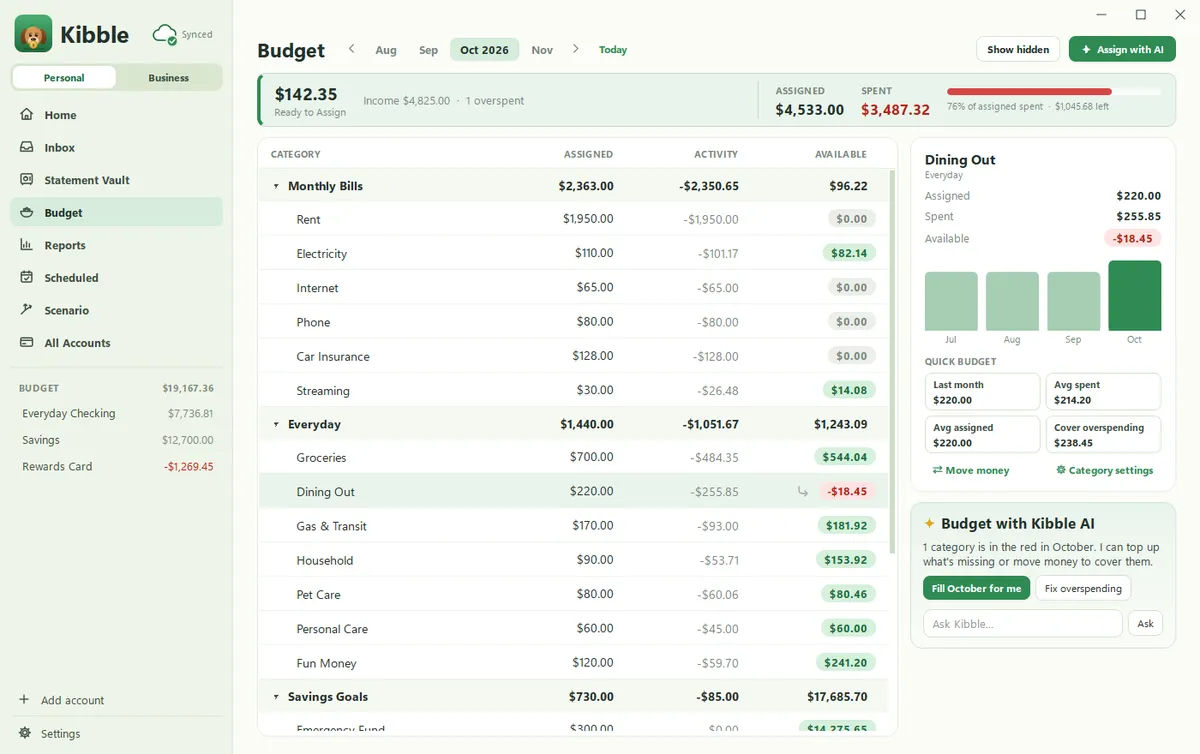
- The cloud shows Synced, Syncing, Problem or Not on. Hover it to see when Kibble last synced and how many changes are waiting.
- Kibble syncs on its own every few minutes and a few seconds after you change something, and it still works offline.
- When the same thing changed in two places, the newest change wins.
- Your email sign-ins, AI keys, Clockify key and receipt files stay on the computer where you added them.
For the backup, Settings > General > Your data > Export… saves everything to one file. See Sync and backups and Export and import your data.
The short version
- Keep one budget, not two copies.
- A cloud folder works for a spreadsheet if you only open it in one place at a time.
- An app that syncs its own data is easiest for everyday use on two computers.
- Let it finish syncing before you switch, and keep passwords off the sync.
- Sync isn’t a backup. Export a copy once a month.
Questions people ask
Can I keep my budget spreadsheet in a cloud folder and open it on both computers?
You can, but open it on only one computer at a time and let it finish syncing before you switch. If both computers change the file before it syncs, you usually end up with two conflicting copies to merge by hand.
Is syncing the same as backing up?
No. Sync copies every change to your other computers, including mistakes and deletes. A backup is a copy you set aside that doesn't change, so you can go back to it.
Should passwords and app keys sync too?
They don't need to. Keeping email passwords and app keys on the computer where you added them means a problem on one computer can't expose them everywhere.
Still scratching your head?
Send us a note and a real person will get back to you.