Back up to Google Drive
How to have Fetch copy each finished meeting to Google Drive, what it can see in your Drive, and how to copy older meetings too.
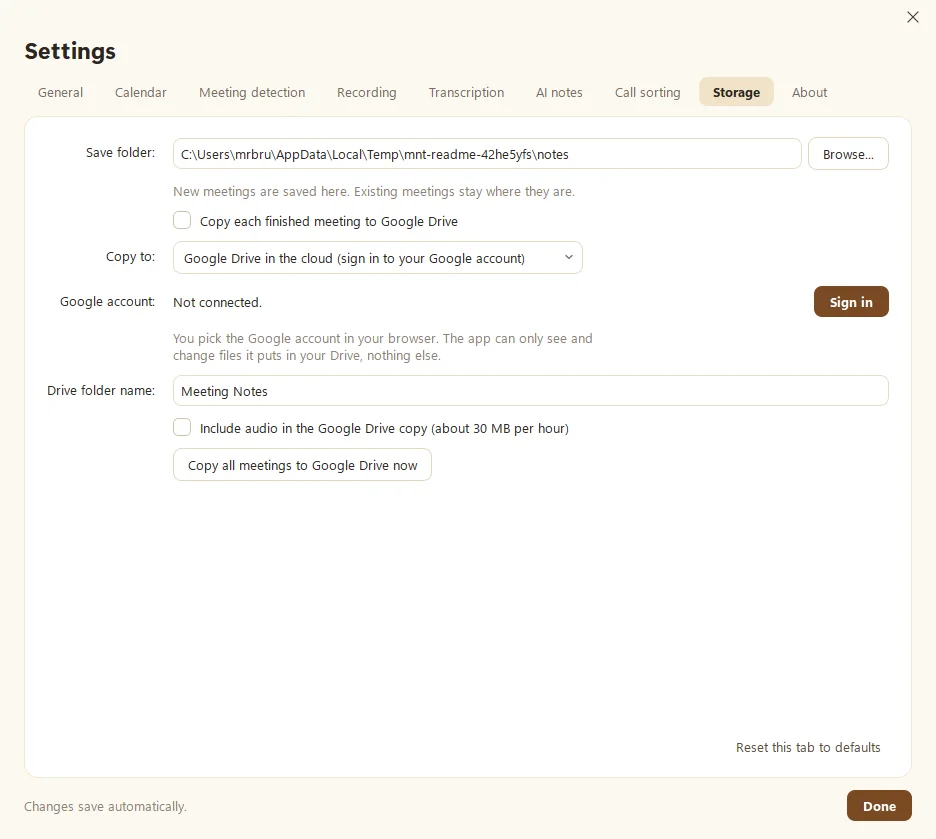
Fetch can copy each finished meeting to Google Drive, so your notes are backed up and easy to open on your phone. Turn it on in Settings > Storage with Copy each finished meeting to Google Drive, then connect your Google account or point Fetch at your Google Drive for Desktop folder.
How do I turn it on?
- Open Settings > Storage.
- Tick Copy each finished meeting to Google Drive.
- Under Copy to, choose one:
- Google Drive in the cloud. Click Sign in and pick your Google account in the browser. Meetings go to a Drive folder named Meeting Notes, which you can rename.
- Google Drive for Desktop folder on this PC. If you use Google’s desktop app, Fetch finds your Drive folder by itself, or you can browse to one.
- Tick Include audio in the Google Drive copy if you want the recordings too.
You can also connect Google Drive during Fetch’s first-time setup.
How do I back up meetings I already have?
Click Copy all meetings to Google Drive now in Settings > Storage. It copies everything at once and tells you when it’s done. Make sure the main switch is on first.
What can Fetch see in my Drive?
When you sign in through Fetch, it can only see and change the files it puts in your Drive. Your vacation photos and tax spreadsheets stay off-limits. Your Drive sign-in is stored encrypted on your computer. More on our Security page.
Does backup change where meetings are saved?
No. Your meetings still live on your computer (see Where are my recordings saved?). Drive just gets a copy, like a good dog burying a spare bone.
It says “Not connected” or the copy failed
Click Sign in again under Google account. If you chose the desktop folder option and Fetch says the folder wasn’t found, check that Google Drive for Desktop is installed and signed in.
Questions people ask
Can Fetch see my other Drive files?
No. When you connect through Fetch, it can only see and change the files it puts in your Drive, nothing else.
Is audio backed up?
Only if you tick "Include audio in the Google Drive copy". It's about 30 MB per hour. Notes and transcripts are always included.
Is Google Drive backup required?
No. It's optional and off until you turn it on. Your meetings are saved on your computer either way.
Still scratching your head?
Send us a note and a real person will get back to you.